
Overview
Genio Planner is the study planner that helps you start studying, not just organise your time. Plan your coursework and day-to-day commitments, then decide what you'll actually focus on right now.
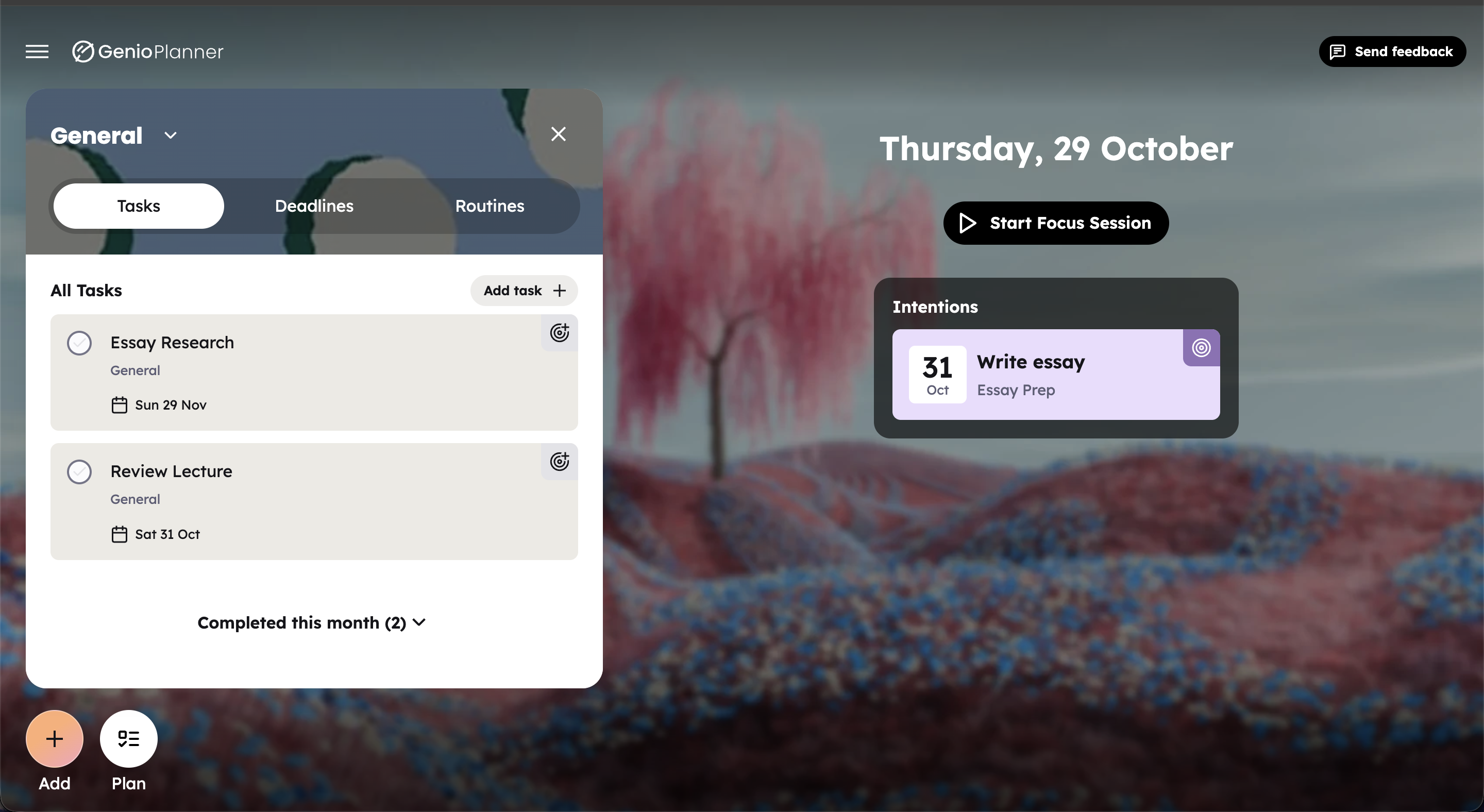
- Notebooks group your work by course or area of life.
- Tasks are your individual to-dos.
- Deadlines track dated commitments such as exams and essays.
- Routines are habits you want to keep up each day or week.
- Intentions are the few things you've chosen to work on. Mark something as an intention and it appears on your Focus Dashboard, Planner's home screen.
In this collection:
- Getting started - sign up and set up your planner
- Notebooks - group your work by course or topic
- Tasks - manage your individual to-dos
- Deadlines - track exams, essays and other commitments
- Routines - build daily or weekly habits
- Intentions - decide what to focus on
- Quick Add - add anything from anywhere
- Your account and getting help - feedback, support, signing out
- Troubleshooting and FAQs - common questions
Focus
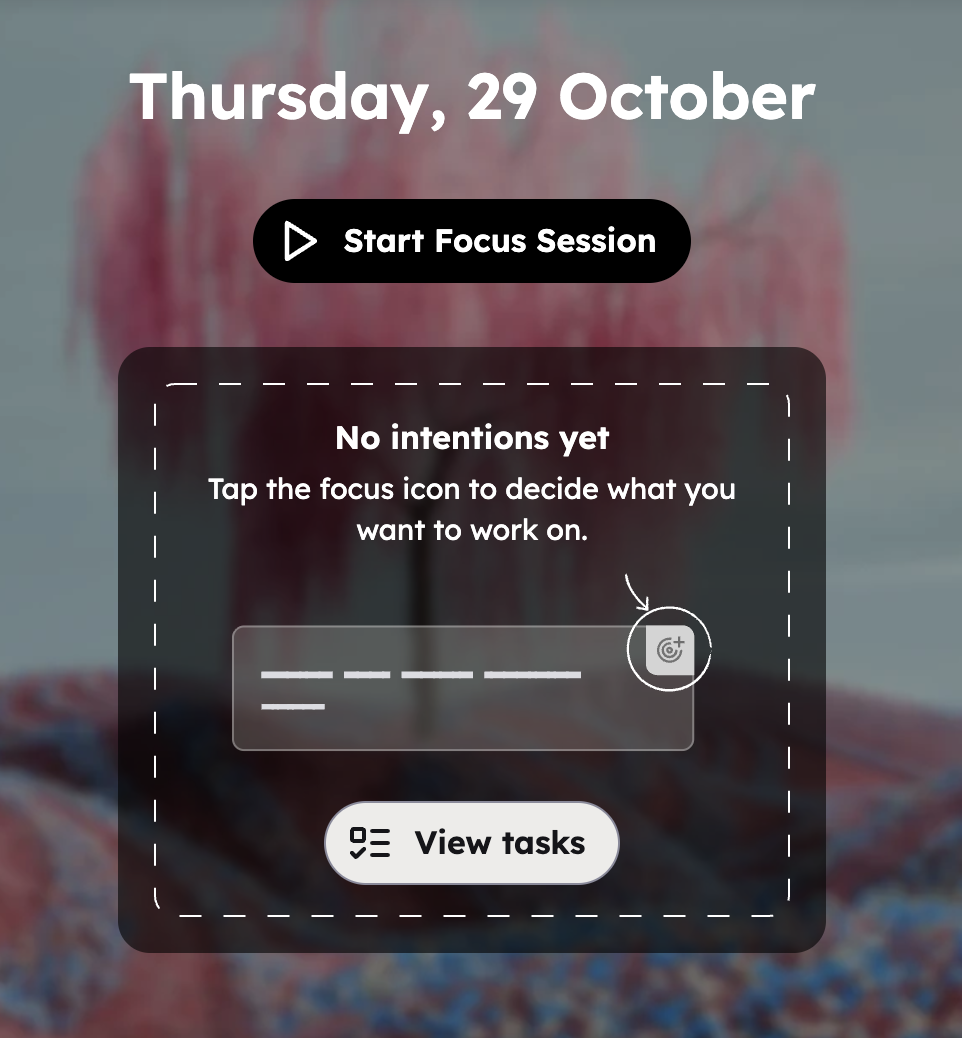
The Focus Dashboard shows today's date and your Intentions: the tasks, deadlines and routines you've chosen to work on. Everything else stays out of sight so you can concentrate.
Plan
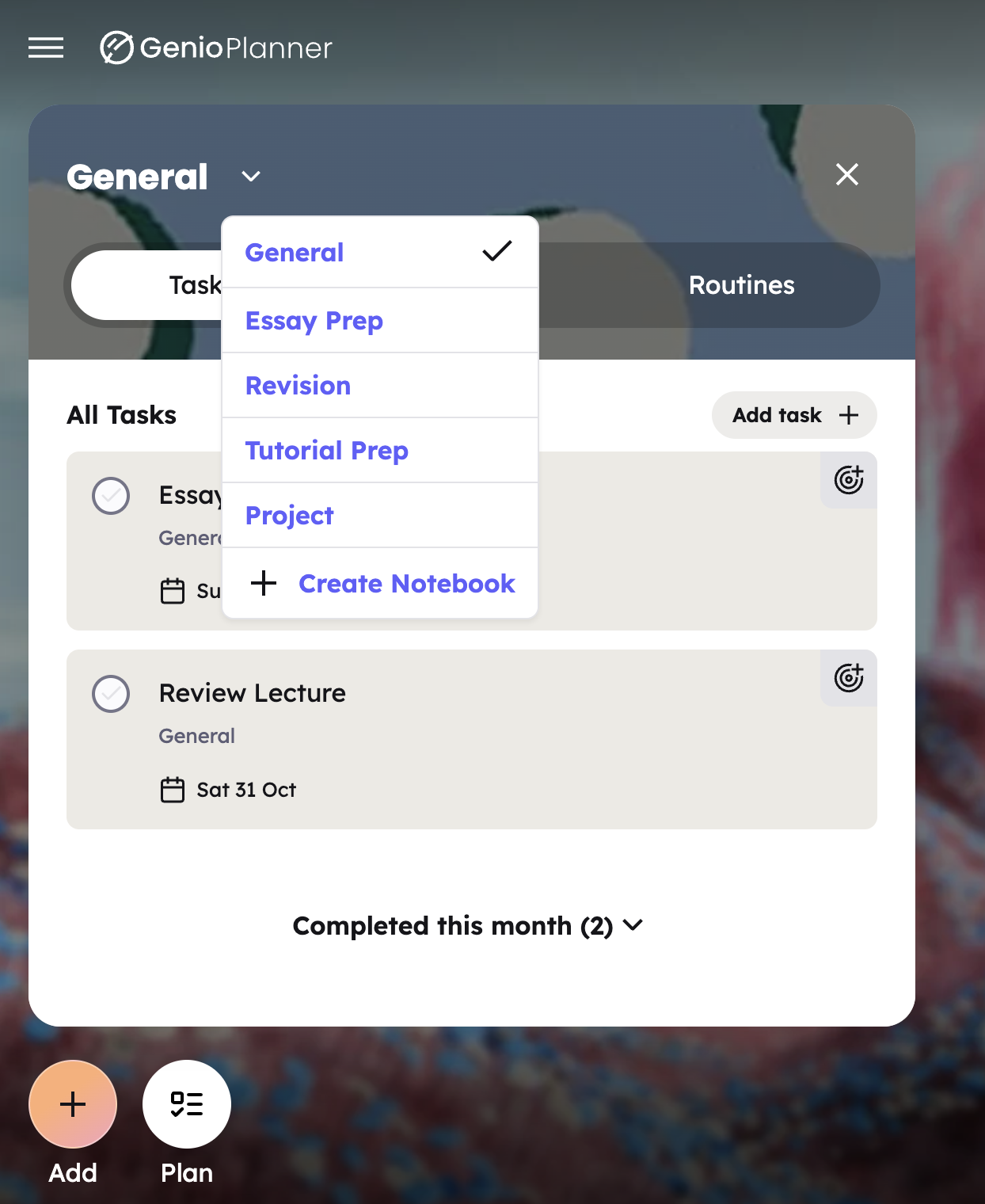
Plan is where you organise everything. It opens one notebook at a time, with three tabs:
- Tasks
- Deadlines
- Routines
The notebook's name and cover appear at the top. Use the Switch notebook arrow next to the name to move to another notebook or to create a new one. The pencil icon opens Edit notebook.
Getting there:
- On your phone: use the bar at the bottom of the screen. Focus takes you home, Plan opens your plan, and the + in the middle opens Quick Add. Plan covers the whole screen.
- On a computer or tablet in landscape: Add and Plan sit at the bottom of the Focus column. Plan opens in a panel beside your Focus Dashboard, so your intentions stay in view. Select Plan again, or press Esc, to close it.
Quick Add
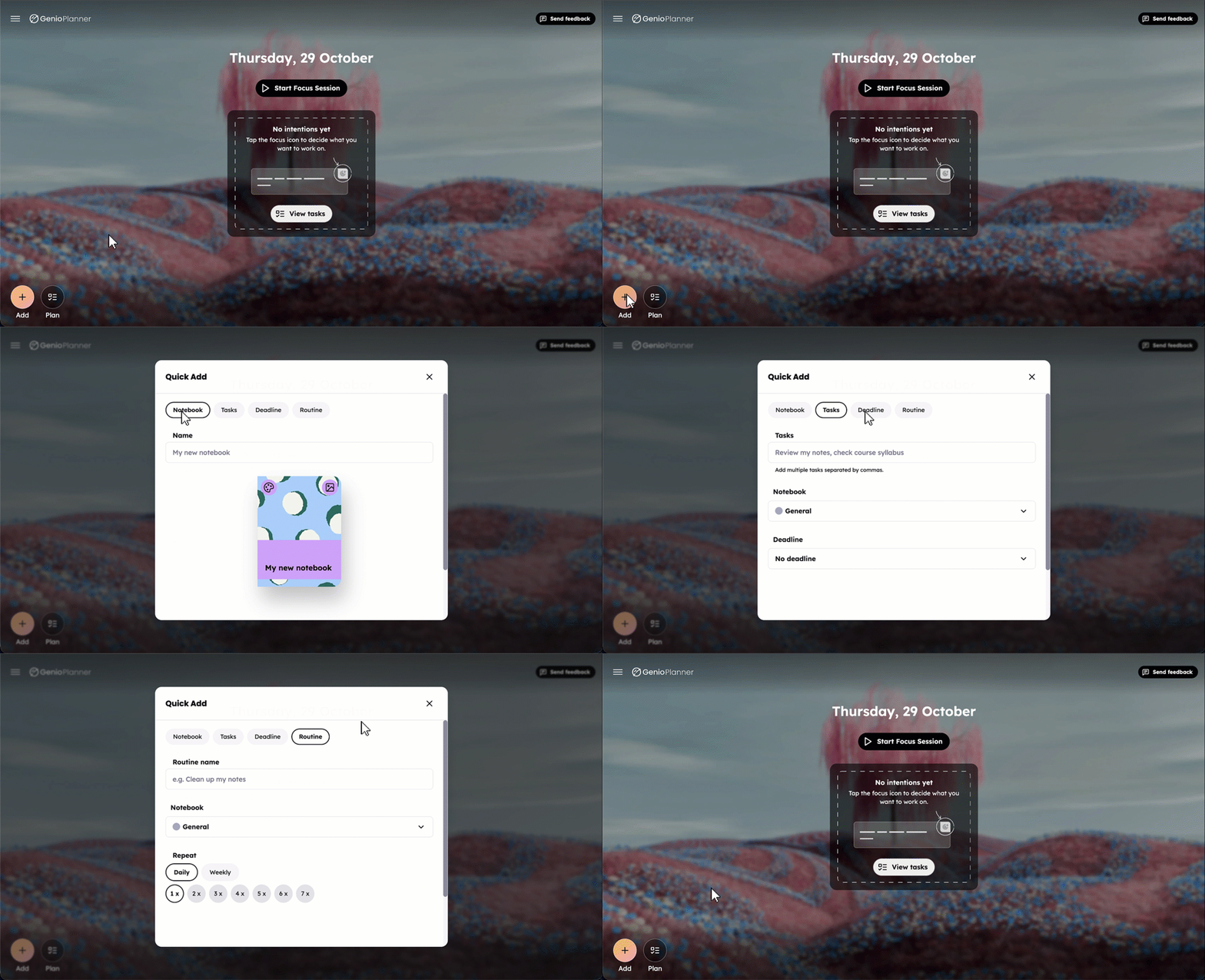
Wherever you are in Planner, the + / Add button opens Quick Add. Use it to create a notebook, task, deadline or routine. It opens on the tab that matches the page you're on, and fills in the notebook you're viewing. See Quick Add.
The Options Menu
Select Menu (☰) at the top left to see the email address you're signed in with. The menu also has Send feedback, Get Support, Sign Out and, where available, Delete account. See Your account and getting help.
Ready to dive in? Start with Getting started, or jump to Intentions to see how the Focus Dashboard works.