
Tasks
A task is a single piece of work, anything from "read chapter 3" to "email my tutor".
In this article:
- See your tasks
- Add a task
- Add several tasks at once
- Complete a task
- Edit a task
- Delete a task
- Completed tasks
See your tasks
Open Plan and select the Tasks tab. You'll see All Tasks for the current notebook, newest first. Use Switch notebook at the top to see another notebook's tasks (see Notebooks).
Each task shows its name, its notebook, its due date (if it has one) and a focus icon for making it an intention.
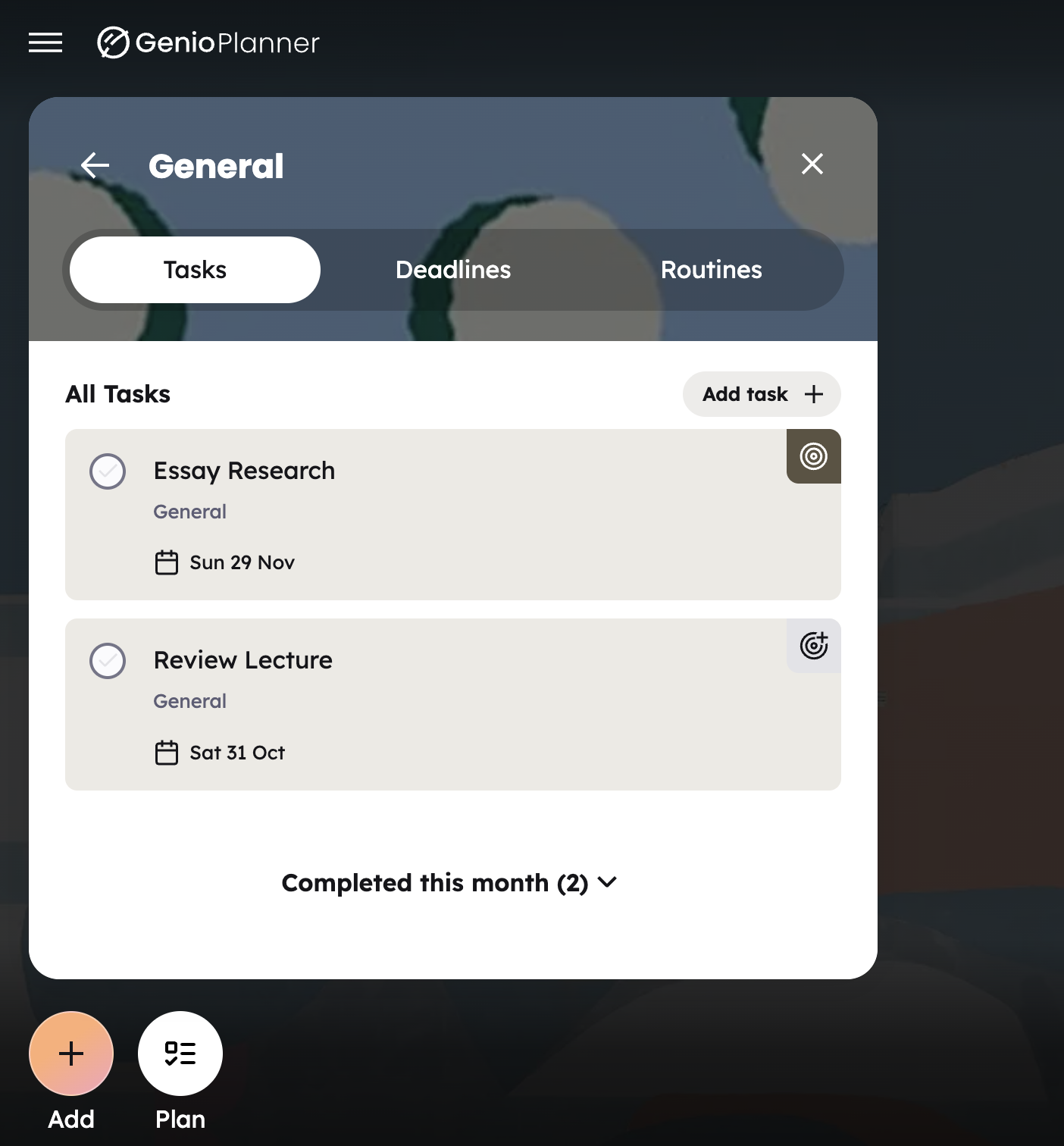
If the notebook has no tasks, you'll see "No tasks in this notebook yet." If you've finished them all, you'll see "All tasks in this notebook are done!"
Add a task
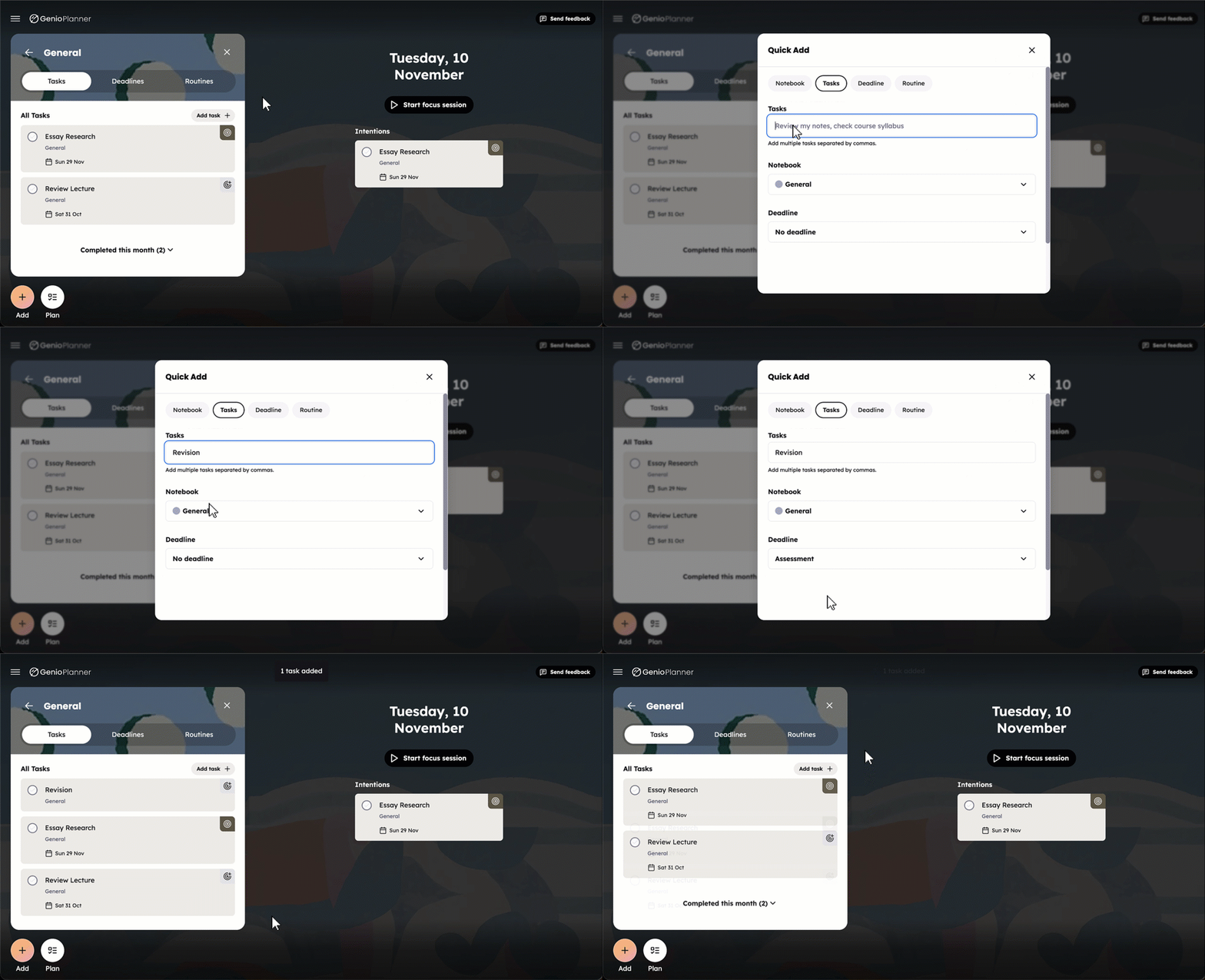
- Open Quick Add and select the Task tab. If you're already on the Tasks tab, Quick Add opens here.
- Type what you need to do.
- Optionally choose:
- a Notebook (the one you're viewing is filled in for you)
- a Deadline the task is working towards (only upcoming deadlines in that notebook are listed)
- Select Add. You'll see a confirmation such as "1 task added".
If the task belongs to a bigger deadline, you can also add it from that deadline's Plan (see Deadlines).
Add several tasks at once
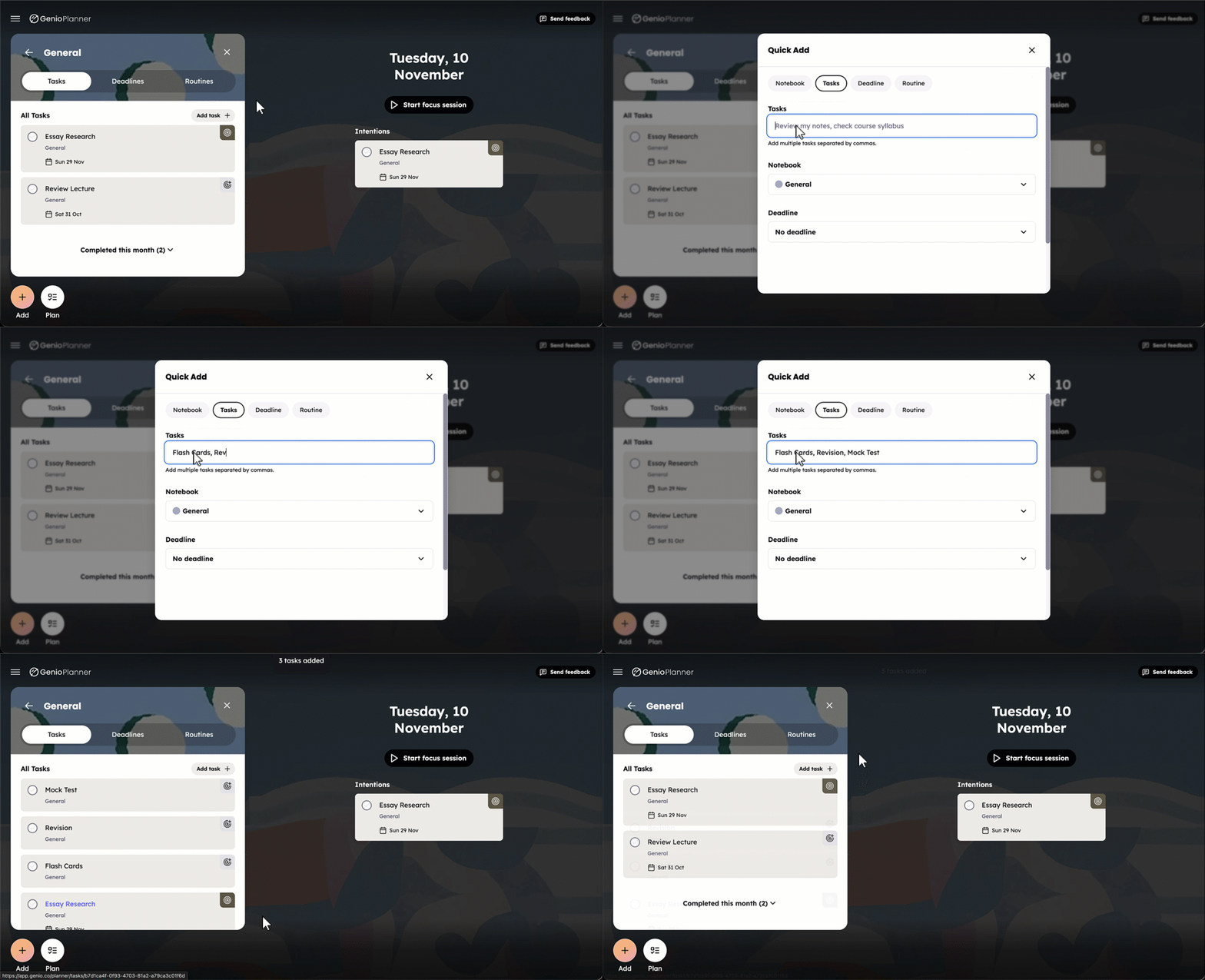
Separate tasks with commas and Planner creates one task for each. For example, buy milk, email tutor, read chapter 3 creates three tasks. They all share the notebook, deadline and due date you chose.
Each task can be up to 500 characters.
Complete a task
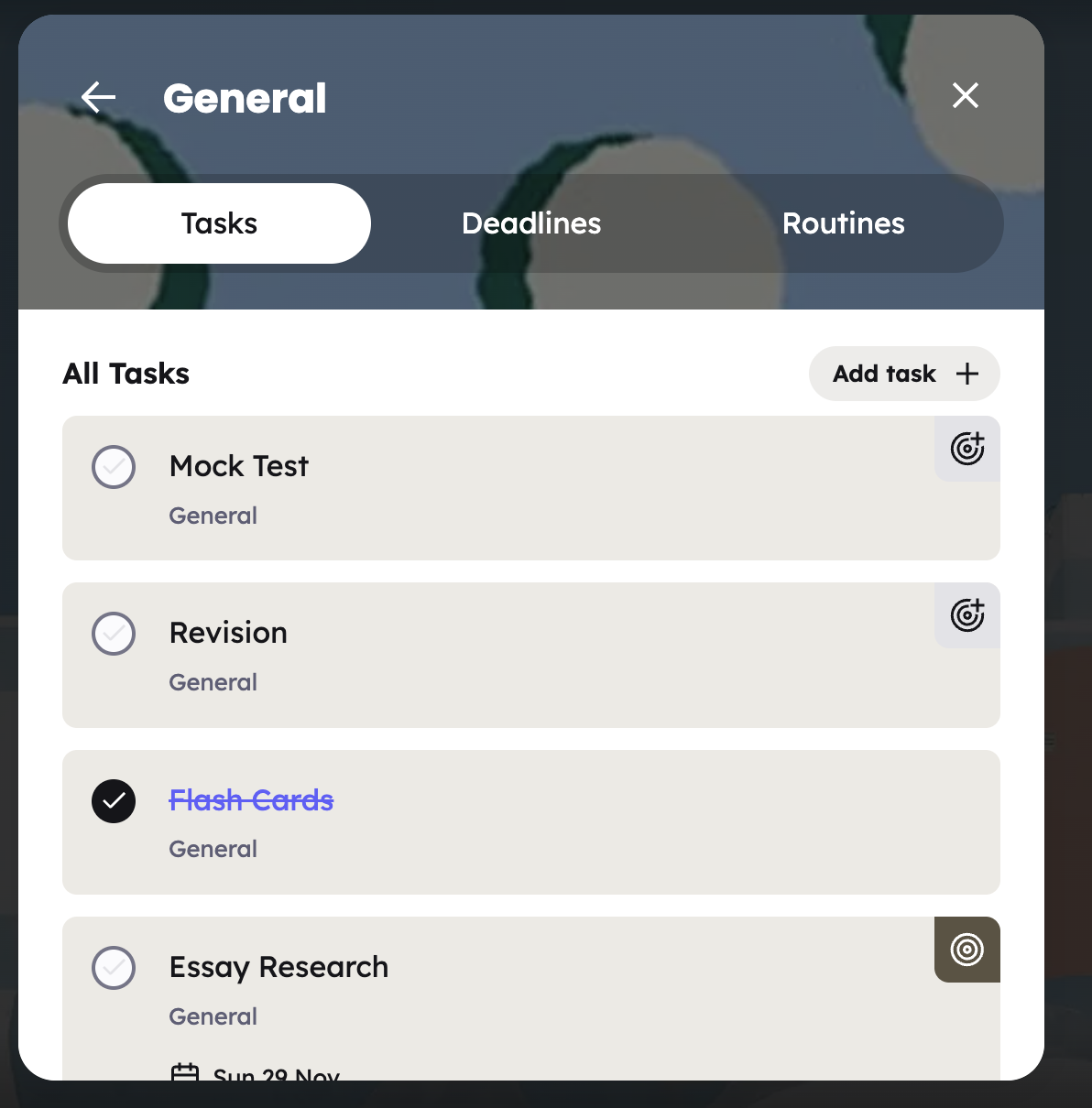
Tick the checkbox on a task.
Ticked one by mistake? Untick it. Tasks you complete stay visible, crossed out, until you leave the page.
Edit a task
Select a task's name to open it. You can change:
- Task name
- Notes: add any extra detail
- Notebook: moving a task to another notebook unlinks it from its deadline
- Deadline: link or unlink the task from a deadline
- Due date: select the × in the field to clear it
- Set intention: switch on to add the task to your Focus Dashboard
There's no Save button. Each change saves as soon as you move away from the field. Select Back (or press Esc) to return.
Delete a task
- Open the task.
- Select the bin icon (Delete task) at the top.
- Select Delete to confirm.
Deleting a task is permanent and can't be undone.
Completed tasks
Tasks you completed earlier in the last month are in Completed this month at the bottom of the Tasks tab. Select it to expand the list. You can untick a task there to make it active again.
Tasks completed more than a month ago are no longer shown.
Next: turn a to-do into a habit with Routines, or bring your top priorities onto the Focus Dashboard with Intentions.