
Deadlines
A deadline is a dated commitment: an exam, an essay, an assignment, anything with a date you need to hit.
In this article:
- See your deadlines
- Add a deadline
- Break a deadline down with a plan
- Edit a deadline
- Mark a deadline as an intention
- Delete a deadline
See your deadlines
Open Plan and select the Deadlines tab. You'll see the current notebook's upcoming deadlines, soonest first, each with its date.
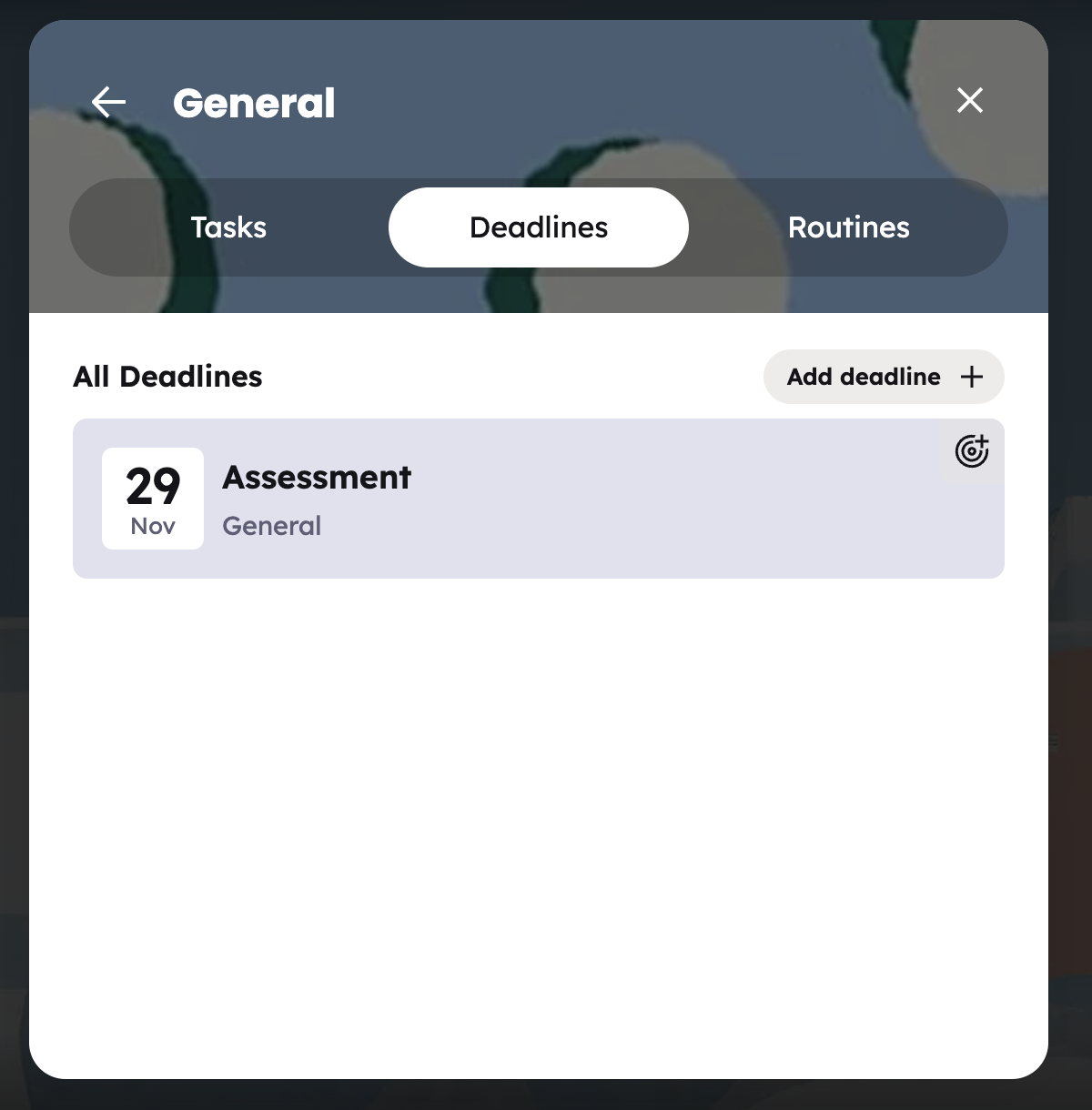
If there are none, you'll see "No upcoming deadlines in this notebook."
Where did my deadline go? Once a deadline's date has passed, it no longer appears on the Deadlines tab. It isn't deleted. Its plan tasks are kept, and if it's an intention it stays on your Focus Dashboard.
Add a deadline
- Open Quick Add and select the Deadline tab. If you're on the Deadlines tab, Quick Add opens here.
- Choose a Type: Quiz/Exam, Assignment, Essay, Presentation, Group work or Other.
- Set the Date. It must be today or later.
- Give it a Title, for example "Climate change essay".
- Optionally choose a Notebook. The one you're viewing is filled in for you.
- Select Add.
Break a deadline down with a plan
Big deadlines are easier in smaller steps. Open a deadline and use its Plan section:
- Select Add tasks.
- Type the steps, separated by commas, for example find sources, draft outline, write introduction.
- Press Enter to save.
Tasks added here automatically take the deadline's date and notebook. Tick them off as you go.
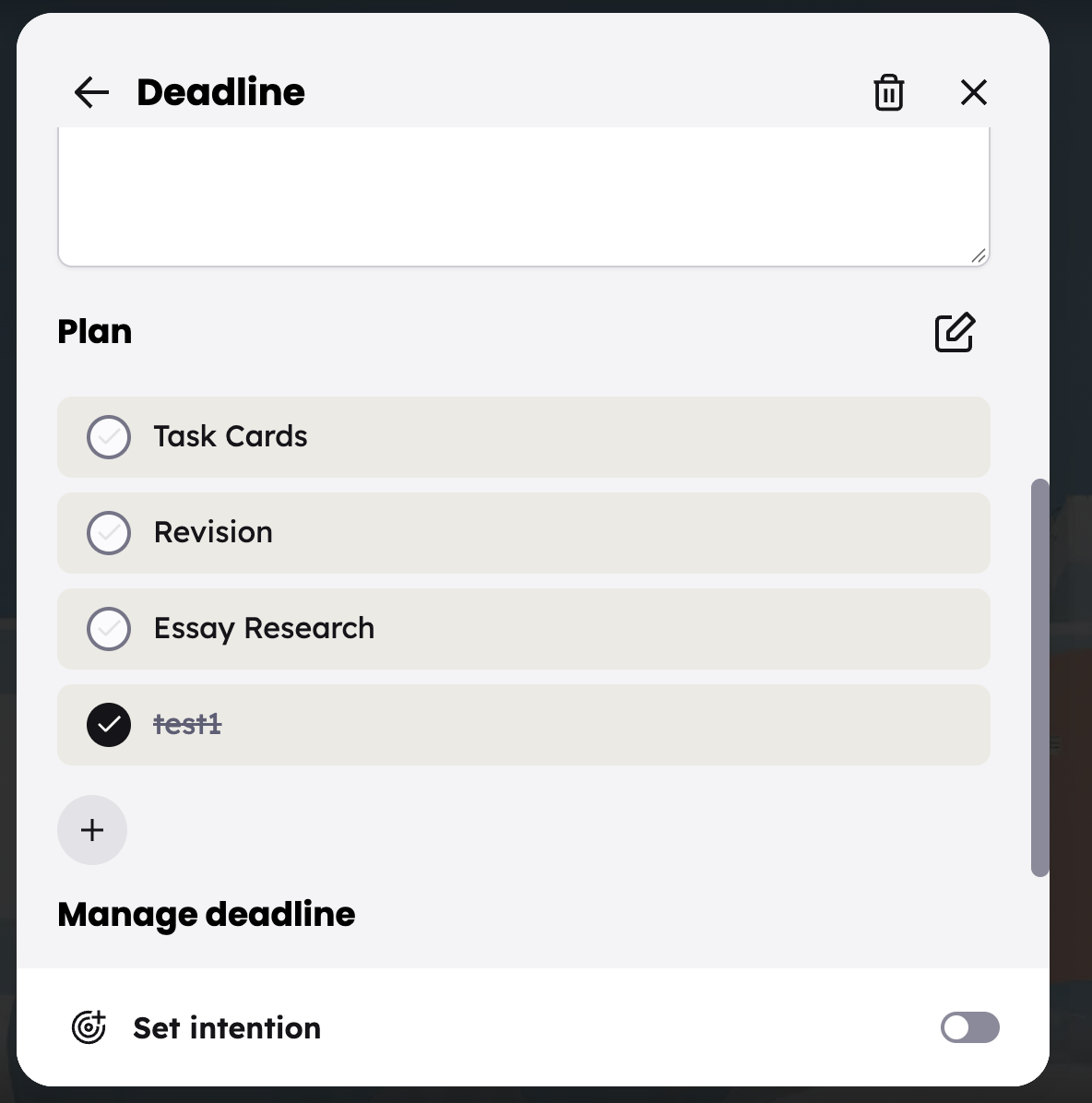
To rename or remove plan tasks, select Edit plan, make your changes, then select Save.
Important: Removing a task in Edit plan deletes the task. To keep a task but unlink it from the deadline, open the task and clear its Deadline instead.
You can also link an existing task to a deadline from the task itself (see Tasks).
Edit a deadline
Select a deadline to open it. You can change its Due date (it can't be moved into the past), Deadline type, Title, Deadline notes and Notebook. Changes save as you move away from each field.
Moving a deadline to another notebook moves the tasks in its plan with it.
Mark a deadline as an intention
If a deadline needs your attention, tap its focus icon, or use the Set intention switch on the deadline page. It will appear on your Focus Dashboard. See Intentions.
Delete a deadline
- Open the deadline.
- Select the bin icon (Delete deadline).
- Select Delete to confirm.
The tasks in its plan are not deleted. They stay in their notebook, no longer linked to a deadline.
Next: manage the individual to-dos that make up your work in Tasks.