
Getting Started
This guide covers signing up for Genio Planner and the short setup that runs the first time you open it.
In this article:
Sign up or sign in
Go to app.genio.co/planner in a browser, or open the Genio Planner app on your phone.
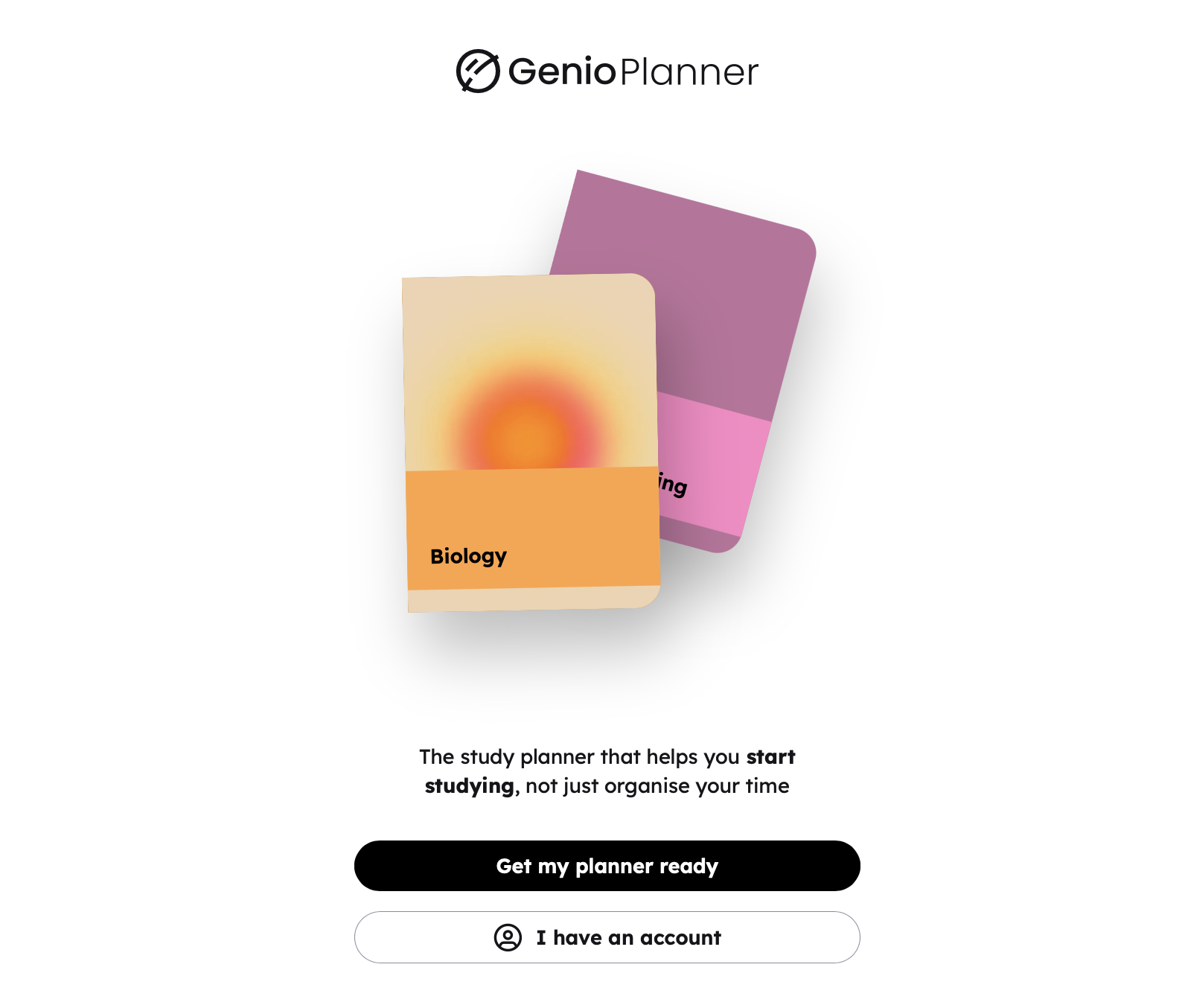
- New to Genio Planner? Select Get my planner ready and follow the steps to create your account.
- Already have a Genio account? Select I have an account and sign in. You'll come straight back to Planner.
Note: Genio Planner is currently in early access. If you sign in and see Access Denied, your account doesn't have Planner access yet. See Troubleshooting and FAQs.
Step 1: Set up your notebooks
The first time you open Planner, a short setup helps you get organised. A progress bar at the top shows how far through you are.
- Everything lives in notebooks. Select Add my notebooks.
- Add notebooks for your studies. Type the modules or courses you're taking this semester, such as "Biology 101", and pick a colour for each. Select Add more if you need extra rows, then select Add.
- What else fills your week? Optionally, turn on ready-made notebooks for Work, Wellbeing, Family or Social. Select Continue, or Skip if you don't want any.
You can rename, recolour or delete these notebooks later. See Notebooks.
Step 2: Set your first intentions
- Protect your focus. Select Add my intentions.
- What do you want to focus on this week? Type a few tasks separated by commas, for example Review my notes, Check course syllabus. You can also tap a suggestion. Select Add. You need at least one task to carry on.
- Set your intentions. Tap the focus icon (the target) next to at least one task to make it an intention. Select Go to planner.
You'll land on your Focus Dashboard with your first intentions ready.
What next?
- Add deadlines for upcoming exams and assignments: Deadlines
- Build habits: Routines
- Learn how the Focus Dashboard works: Intentions