
Managed Features
Managed Features allows you to configure which Genio Notes features are available to your users.
You can currently manage access to our Outlines, Quiz Me, and Study Notes features. You can set these at an organisational level and/or for specific user groups.
This gives you the ability to tailor the Genio Notes experience to your specific needs, whether for academic integrity, phased rollouts, or accommodations.
Organisational Managed Features
TIP - To keep things simple, set your Organisation Managed Features to the minimum that you want all your users to be able to access. Then use Groups to enable features for specific users.
Organisational Managed Features
Organisational level settings allows you to configure the default features for users who are not part of any Groups.
For example setting these feature to off, would give all users joining your account the basic functionality of Genio Notes. You can then use Group permissions to give additional features to users who specifically require them (eg for a specific accommodation need).
- From your Admin Portal select the Organisation tab from the left hand panel
- Scroll down to the Managed Features section
- Tick/untick the checkboxes as needed
- Click Save Changes

Group Managed Features
Group level settings allow you to configure what features, members of each Group can access. For more information about Groups see here: https://help.genio.co/article/333-user-groups
Group level settings over-ride the Organisation settings; so you can use them to turn features on and off for members of the Group. You can see the status of these settings in your Admin Portal, on the Group Tab:

Please note that users who are part of multiple groups will get access to a feature even if it is only switched on in one of their groups.
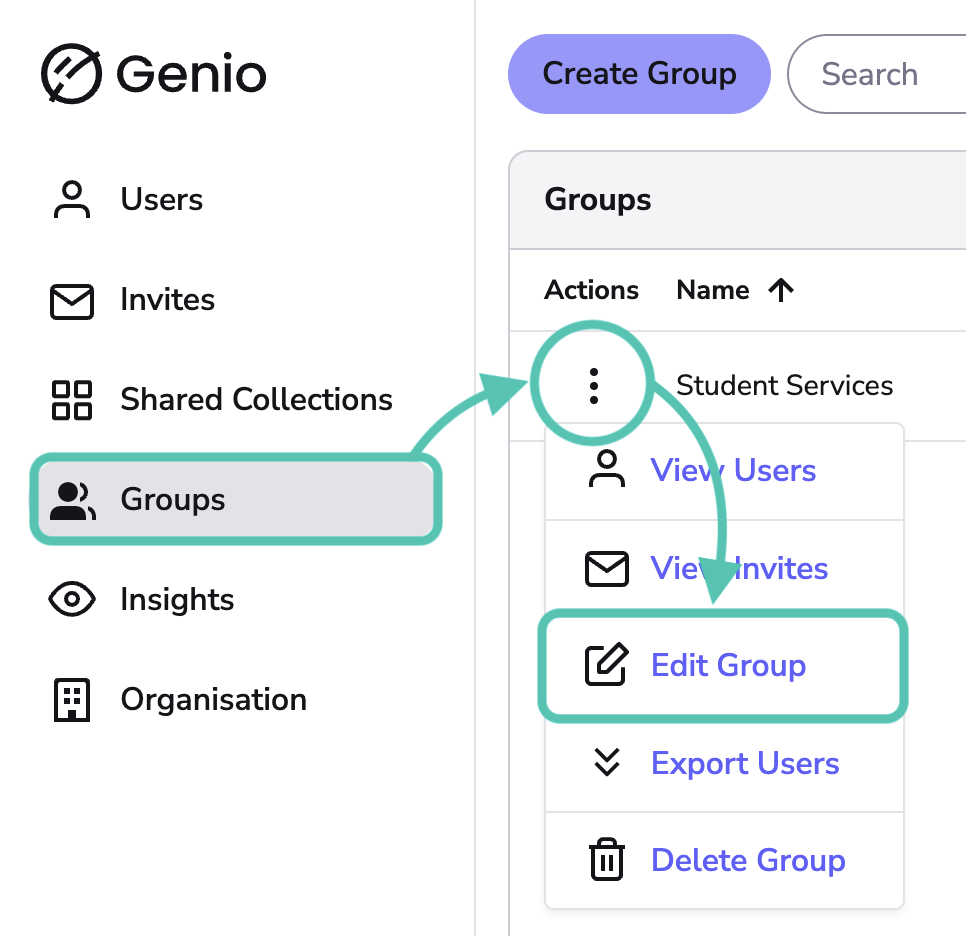
- From your Admin Portal select the Groups tab from the left hand panel
-
Click the three dot icon to the left of the Group and select Edit Group
- Scroll down to the Managed Features section
- Tick/untick the checkboxes as needed
- Click Save Changes

FAQ
Can I see what features individual users have access to?
Yes you can. If you locate the user in your Admin Portal, click the three dots to the left of their name and Edit User then at the very bottom of the page it will show which features this specific user can access.
Which features can I manage?
Right now you can manage access to our Outlines, Quiz Me, and Study Notes features. If you need other features to be switched off then please contact your Customer Success Manager to discuss this.
A user isn't part of a Group, what can they access?
Users who are not part of any Groups pick up the Organisation settings.
A user is part of several groups with different features; what can they access?
The user will be able to access the most features they can across their combined Groups.
- If a feature is ON in one Group but OFF in another, then that student has the feature switched ON.
- If a feature is OFF across all their Groups, then that student has the featured switched OFF
If I enable everything at the Organisation level; does that mean we then can't then manage features in the Groups?
No. Group Permissions (both ON and OFF) over-ride the organisation level permissions.
- If a feature is ON at the Organisation but OFF in a group, then members of that Group have the feature switched OFF (unless another Group enables it)
- If a feature is OFF at the Organisation, but ON in a group, then members of that Group have the feature switched ON.