
Scribble
Note - This guide applies to Genio Notes on your browser, desktop app and new mobile app 📱
Scribble will allow you to create an Image Card with hand-drawn notes.

On this page:
Getting Started:
On your computer:
- Create a new Event and start recording
-
Click the Scribble icon

- Add your Scribbles
- Click the Post button to post the scribble to your feed:


On mobile:
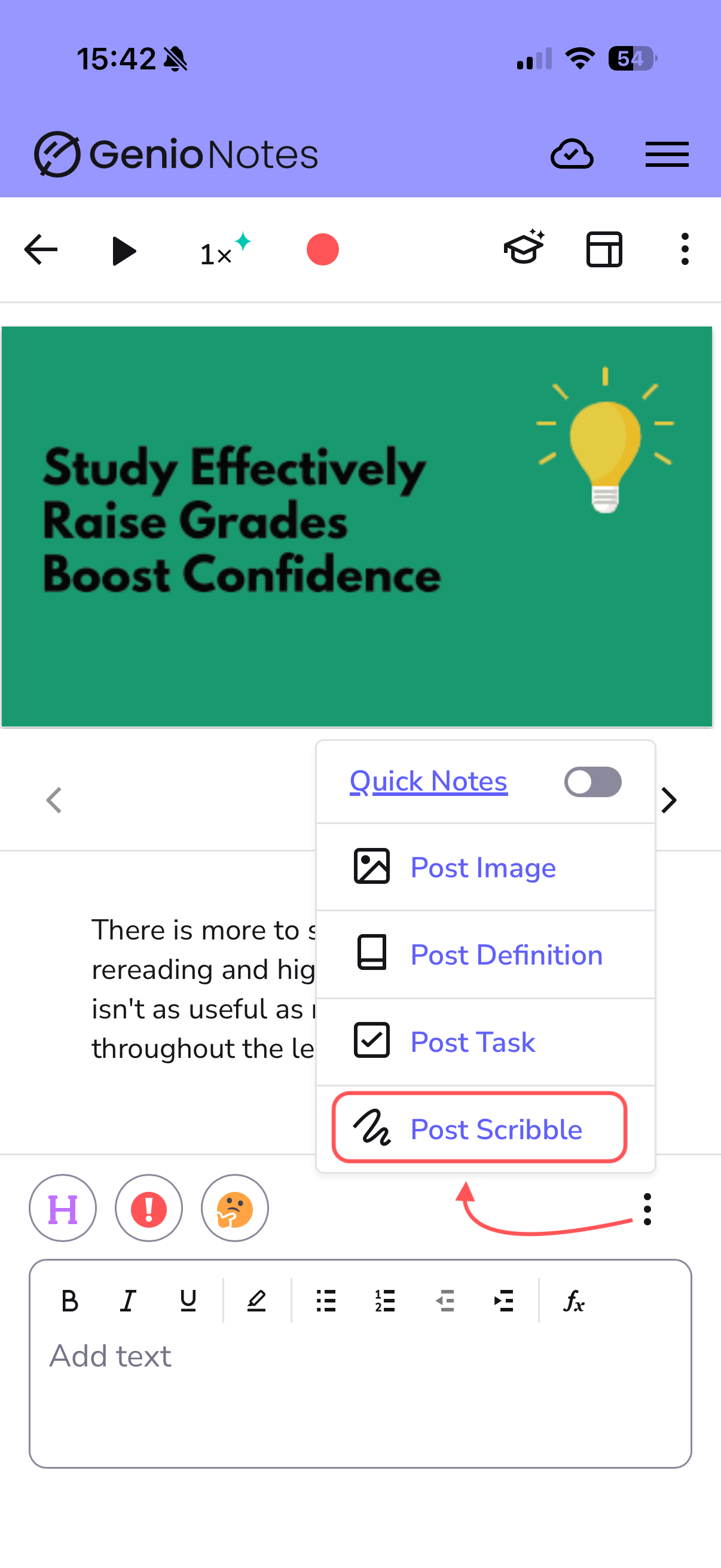
- Open/create your Event
- Click the three-dot icon at the right of the text box:
- Click 'Post Scribble'
- Create your Scribble
- Click the Post button to post the scribble to your feed
The Canvas:
You can use the View box, to change the zoom setting.

Using the ellipsis (three dot) button you can enable a grid on your canvas and/or snap your scribbles to line up with other shapes:

To delete a scribble; after you've posted to your feed, click the three dot menu and then select delete

Scribble Tool Bar
The tool bar is shown on the left of your Canvas with 7 different tools available, plus undo and redo buttons.

- Selection Tool - Select parts of your scribble so that you can move them around your canvas.
- View tool - Move your canvas, without affecting any of your scribbles.
- Pen - Used to draw solid lines
- Highlighter - Used to draw wider transparent lines
-
Shape Tool - Used to draw shapes. Rectangles, circles, triangles, arrows and lines

- Eraser - Delete individual annotations
-
Colour Picker - Select a different colour for your Pen, Highlighter, or Shape and set your line thickness

- Undo / Redo


Extract text from your Scribble images (OCR)
Extract, edit, and repurpose! Extract text from the Scribbles you have created, creating handwritten notes into digital text.
- Simply hover over your Scribble and click the 'Extract Text' icon:

- Your text will appear in your notes feed.
Note - You can also extract text from your images. Click here for more info: https://help.genio.co/article/253-uploading-an-image#extract
FAQ
Can I use a stylus like the Apple Pencil?
Yes you can use a stylus to add your Scribbles (or just your finger). Please note that we don't currently support advanced features, like palm rejection.