
Live Captions
Note - This guide applies to Genio Notes on your browser, desktop app and new mobile app 📱
Important - Live Captions are only available on certain Genio accounts. If you do not have the 'CC' button then please speak with your Genio Admin about this feature (or email support@genio.co).
In this guide:
Overview
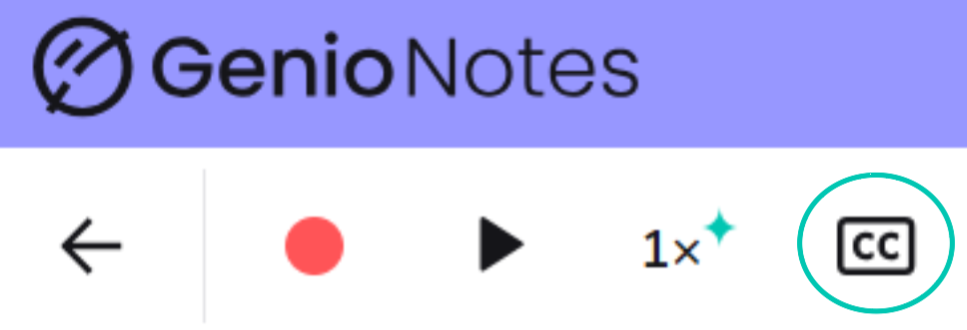
Live captions give you real-time text on-screen as your presenter speaks. Simply press the CC button and start recording:
Info - Captions are only shown when recording (not during playback). And as soon as you stop recording the captions disappear.
If you need the text for your notes, then use our Transcription feature after recording, to get a full text transcript.
As the recording is taking place, you can scroll back and forward through the entire caption record.
To jump back to the present, simply click the double-down arrow icon:

Live Captions Options Menu
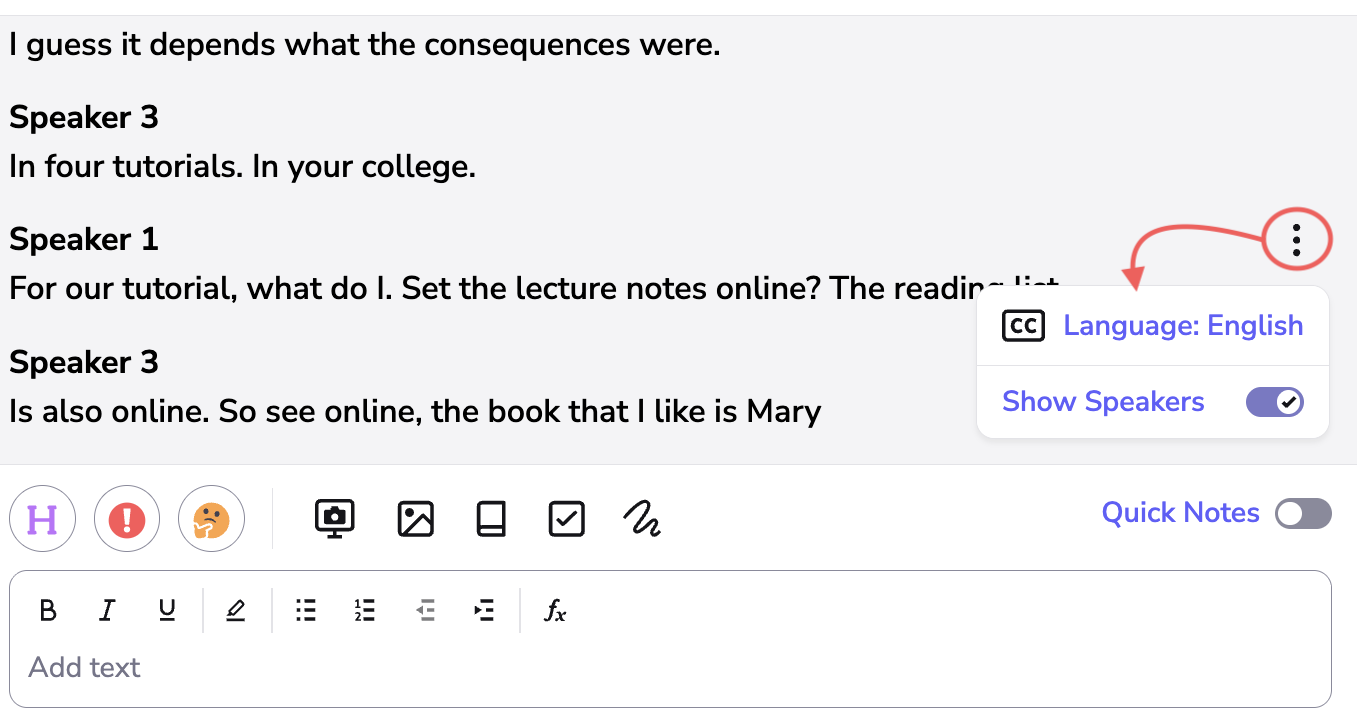
To view the menu options, click the three-dot icon on the right :
Identify Speakers in the Live Captions record
When turned on, Live Captions automatically detects each speaker and splits the text into separate sections for them, making it easy to see who said what.
Language Options
Live Captions Language Option allows you to select the language being spoken in order to improve the accuracy of your captions.
Important - This is not a translation feature.
While you're using Live Captions, you'll see the language that's currently selected in the options menu. Click this to see the full list of options.
Select the language that's being spoken by clicking on the word:

Your live captions will now appear in the correct language.
For more information on the languages we support, see here.
FAQ
What happens if I stop recording? Captions are only shown while recording; as soon as you press stop the caption text disappears.
Can I turn on captions before recording? Yes, Genio will wait until you start recording and then show the captions.
Can I change the text format of the captions (make it larger or change the colour)? Unfortunately you cannot currently alter the text used for captioning. If this is something that you would like to see then please send us the feedback at support@glenio.co
Do you support other languages? We currently support several languages and we'll be adding to this list. See here for more details.
What's the delay between the captions and the audio? Captions take around 300-500ms to generate so there is a tiny delay before the text appears. As more audio is recorded then captioning is able to correct for mistakes made.
Is there a limit to how many Events I can have captioned, or how much audio I can record? No - you can record for as long as you need, and you'll be able to use Live Captioning for all your content. (Did you know, that there are also no limits on our transcription feature?).