
Transcription
Note – This guide applies to Genio Notes on your browser, desktop app, and new mobile app 📱.
As the interface is responsive, the layout may appear slightly different depending on your screen size or device, but the functionality remains the same.
Update: Transcription is now available on (nearly) all Genio accounts. The only exception is for users who are part of our Genio Teams level subscription through a University or College.
If you don't have the 'Transcribe Audio' button when viewing an Event, then you're likely on our Genio Teams subscription. You can confirm this by speaking with your Genio Admin (the person who invited you to Genio) or by contacting us at support@genio.co
On this page:
- 1
-
Getting your transcript
It's quick and easy to request a transcript.
- Open your Genio Event.
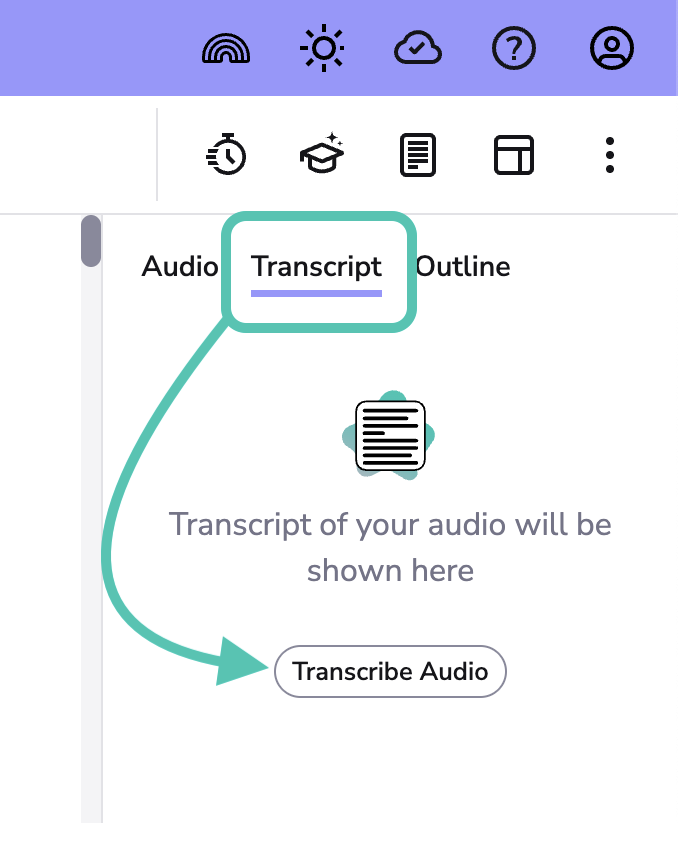
- Switch to the Transcript tab
-
Click Transcribe Audio.
- Pick the language being spoken in your audio (Which languages do you support?)
- Wait for your transcript. This should typically only take a few minutes.
- At this point you can go back to your Event List or even then close Genio - your transcript will continue to generate and will be available the next time you access your Event.
Info - The transcription process will take approximately 5 minutes for every hour of audio. You can go back to your Event List or even close your browser - you don't need to keep your Event open. Once you've triggered transcription everything happens in the background and your transcription will automatically download the next time you access your Event.
If you record additional audio after you've got your transcript, then Genio will automatically get that transcribed for you.
- 2
-
Working with your transcript
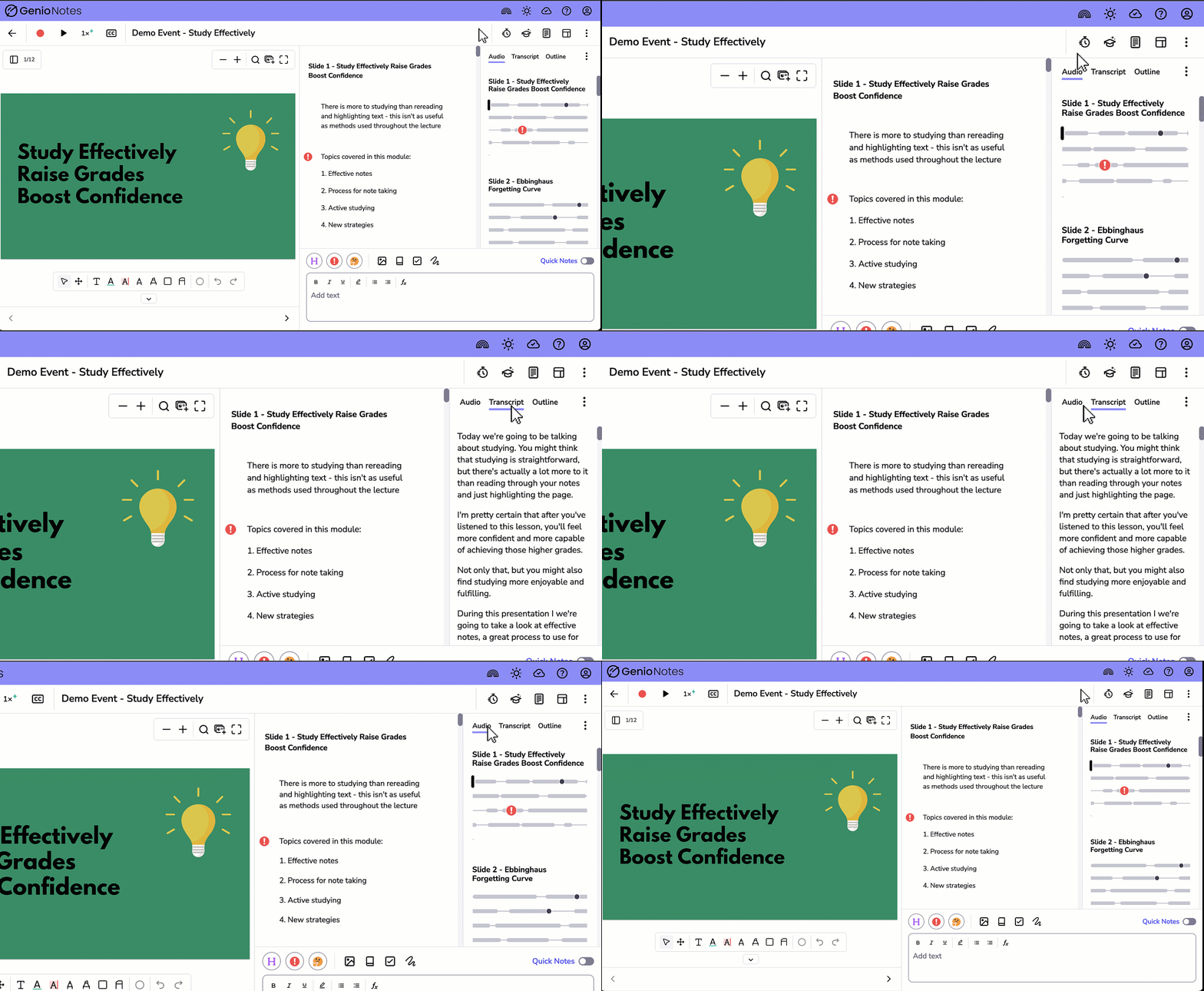
Your transcript is shown in a separate feed. You can quickly switch between viewing your audio and your transcription.
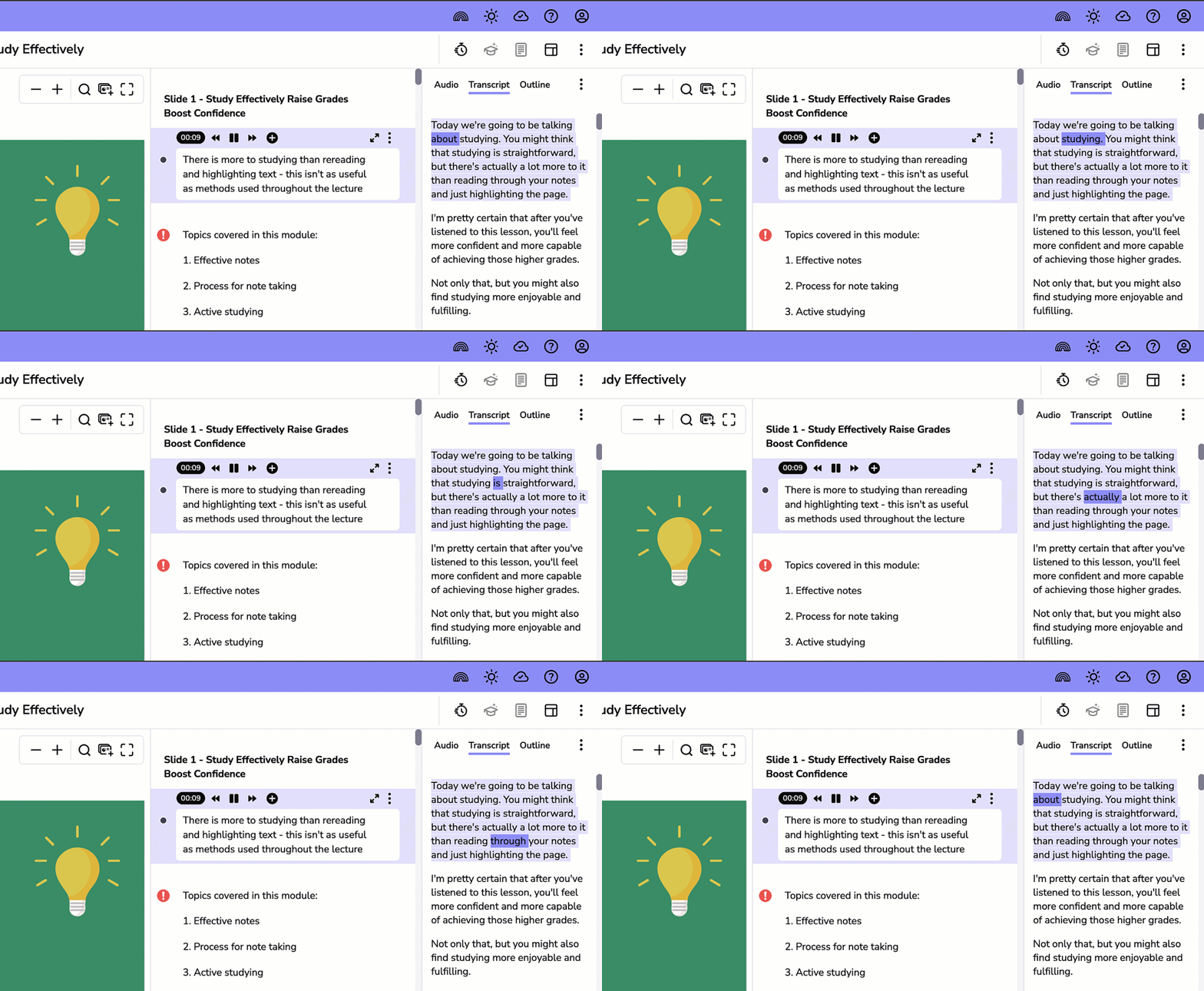
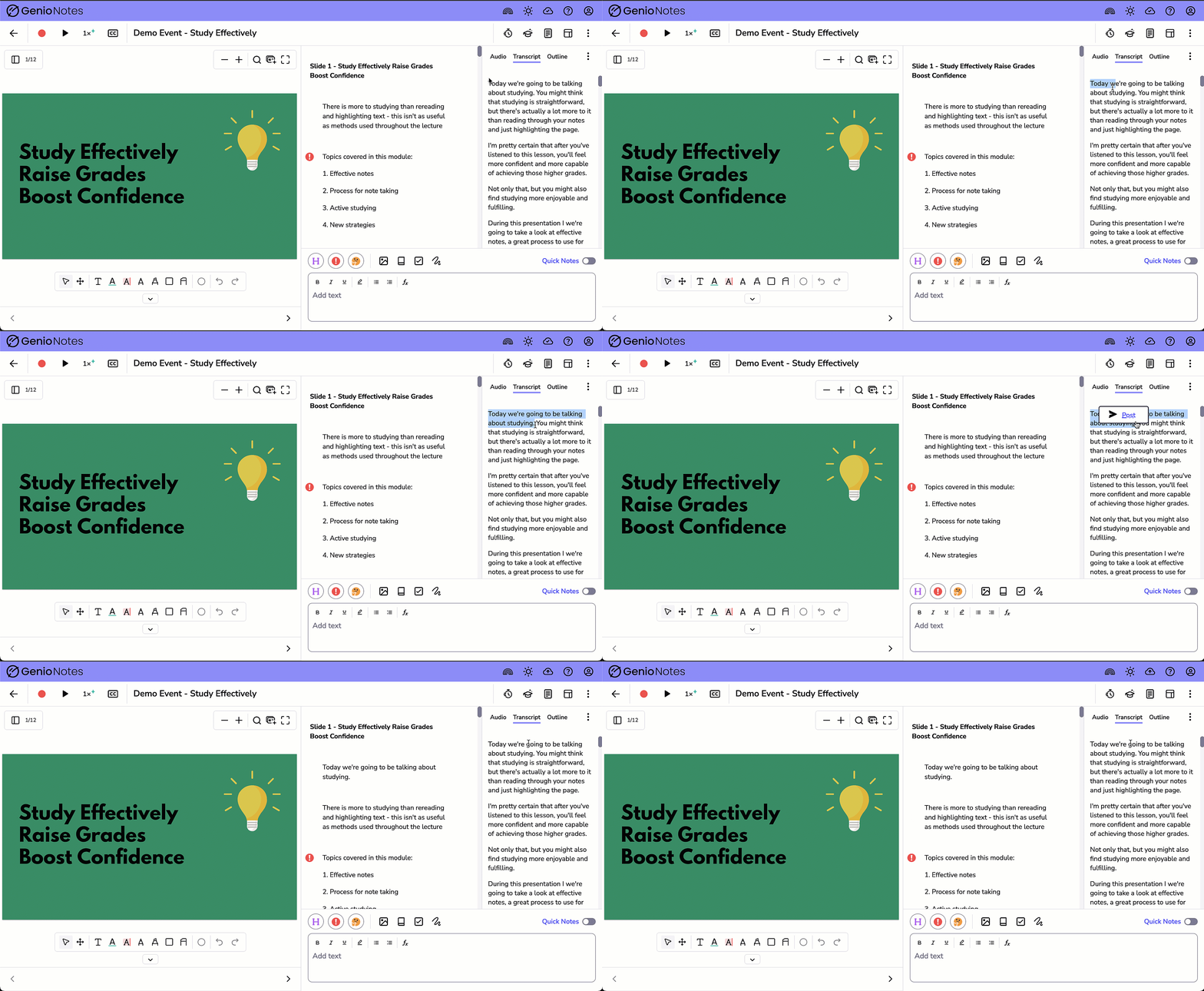
As you play back your audio, the corresponding text is highlighted, and you can post parts of the transcript to your notes feed, where you can edit the text and add further details.
When speaker diarisation is enabled, the text also labels who spoke when, turning your transcript into a structured conversation.
Switching Views
Simply click the Transcript and Audio buttons along the top of your feed to change between seeing your audio bubbles and your transcript:
Text Highlighting
As you play back your audio, the words in your transcript will be highlighted (along with the sentence). You can also use the arrow keys on your keyboard to quickly and easily move through the text.
Posting to your Feed
If you want to add parts of the transcript to your notes feed, highlight the text that you want to add and click the Post button.
OR
Hold SHIFT and use the arrow keys to highlight the words you want to post and then just press ENTER.
Top Tip - If you want to post the entire transcript to your feed so that you can print or export it, alongside your notes. Click at the very start of the text, Hold SHIFT, press the down arrow until everything is selected and then Press Enter to post to your feed.
Top Tip - Genio's inbuilt search feature (available from the Event Tab) will find matches in your text transcripts.
Timestamps in your transcript
All transcripts include timestamps by default, allowing you to navigate your Event and locate specific moments with ease.
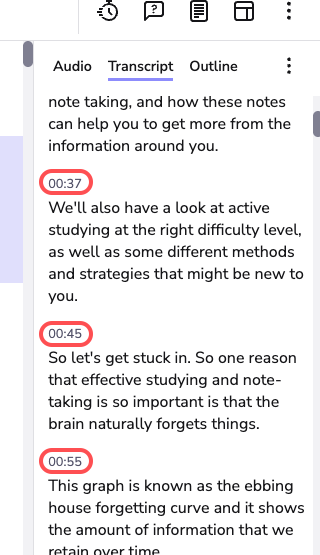
Timestamps can be turned off in the Transcript options menu if that works better for your workflow. To do this:
While in the transcript tab, click the three-dot icon in the top right to open the options menu. Then toggle off 'Show Timestamps':
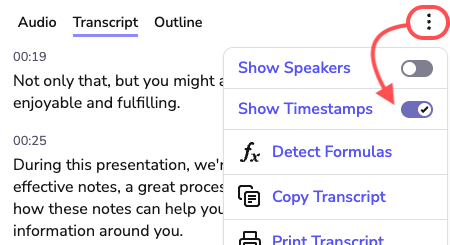
Note- When enabled, timestamps show up across all copy functionality - i.e. post to feed, copy transcript, and print.
Note- Visit: https://help.genio.co/article/420-transcription-options-menu for more on the Transcription Options menu.
FAQ
Can I transcribe a specific part of my audio?
At the moment it's only possible to get your whole recording transcribed. Being able to transcribe parts of your audio could be something we add as the feature evolves. If you'd like this option (or any other changes) then please let us know on support@genio.co
Can I transcribe languages other than English?
Yes you can. There's more information here: https://help.genio.co/article/343-which-languages-do-you-support
What's the quality of the transcription?
The accuracy of the service is largely dependent on the quality of the recording, so if you can improve the quality of recordings (e.g. by sitting closer to your lecturer), this will in turn improve the accuracy of your transcripts.
How long does it take for the transcription to arrive?
Every hour of audio takes about 5 minutes to process. But once you've requested a transcription, you don't need to keep your Event, Genio or even Chrome open. The transcription is processed on our server and will be available the next time you access your Event.
Do I have to keep Genio open while I wait for the transcription?
You don't need to keep your Event, Genio or even Chrome open. The transcription is processed on our server and will be available the next time you access your Event. Just make sure that you go back to your Event List before closing everything.
Can I edit the transcription?
You can only edit the transcription if you post parts of the text into your Feed. If you'd like to have the option to edit the transcription direct (or see any other changes) then please let us know on support@genio.co
What happens if I record more audio?
If you record extra audio then Genio will automatically get that transcribed and added to your Event.
Does Genio filter out bad language?
Genio has an inbuilt profanity filter, that will replace certain words with asterisks in your transcription. The filter is applied by default, but you can quickly turn that off in Preferences.
To toggle the filter: Click your account icon the top right, and select Preferences; you'll then have the option to turn off the Transcription Profanity Filler.
The filter simply affects how words are displayed on screen after you receive your transcription. Which means you can use the toggle to show/hide the words as needed.