
Export User List
You can export a list of users or invites to a CSV file. If you've searched or filtered a list, you can export exactly what you see on screen, so there's no clean-up needed afterwards.
In this guide:
Export Users
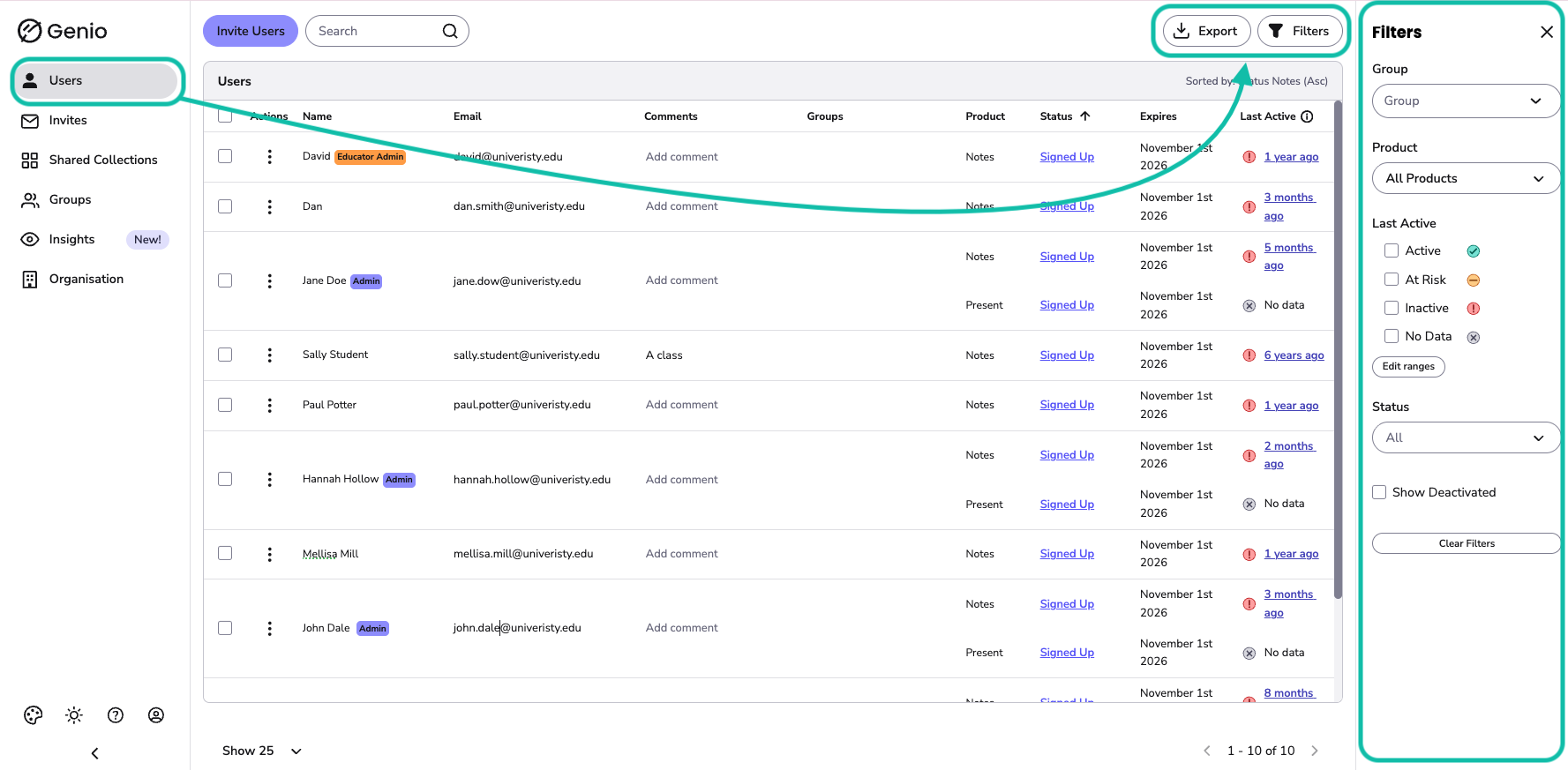
- Go to the Users tab
- Optional: search users or use Filters to narrow down the list, for example, to find students who haven't been active recently.
-
Click Export.
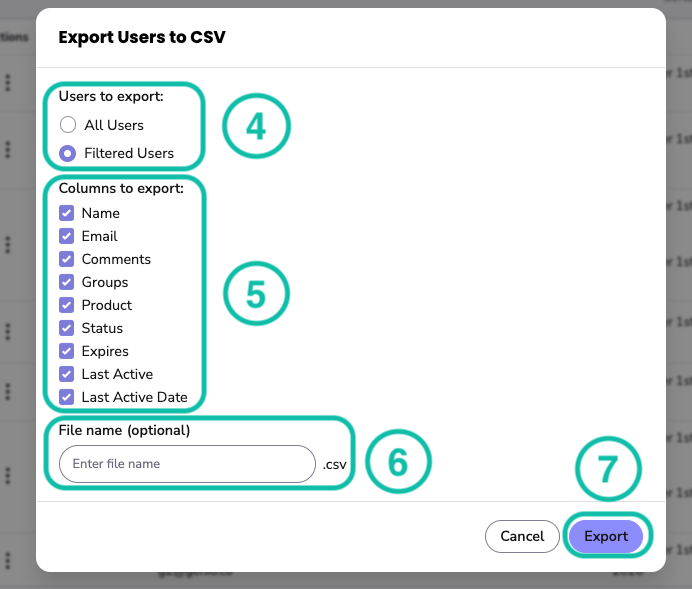
- If you've searched or filtered the user list, choose what to export:
- Filtered Users, Searched Users or Filtered and Searched Users: only the users currently shown on screen. This is selected by default.
- All Users: everyone on your account.
- Under Columns to export, tick the information you want to include.
- Optional: enter a File name. The .csv extension is added for you.
- Click Export.
Info - If no users match your search or filters, you can only export All Users.
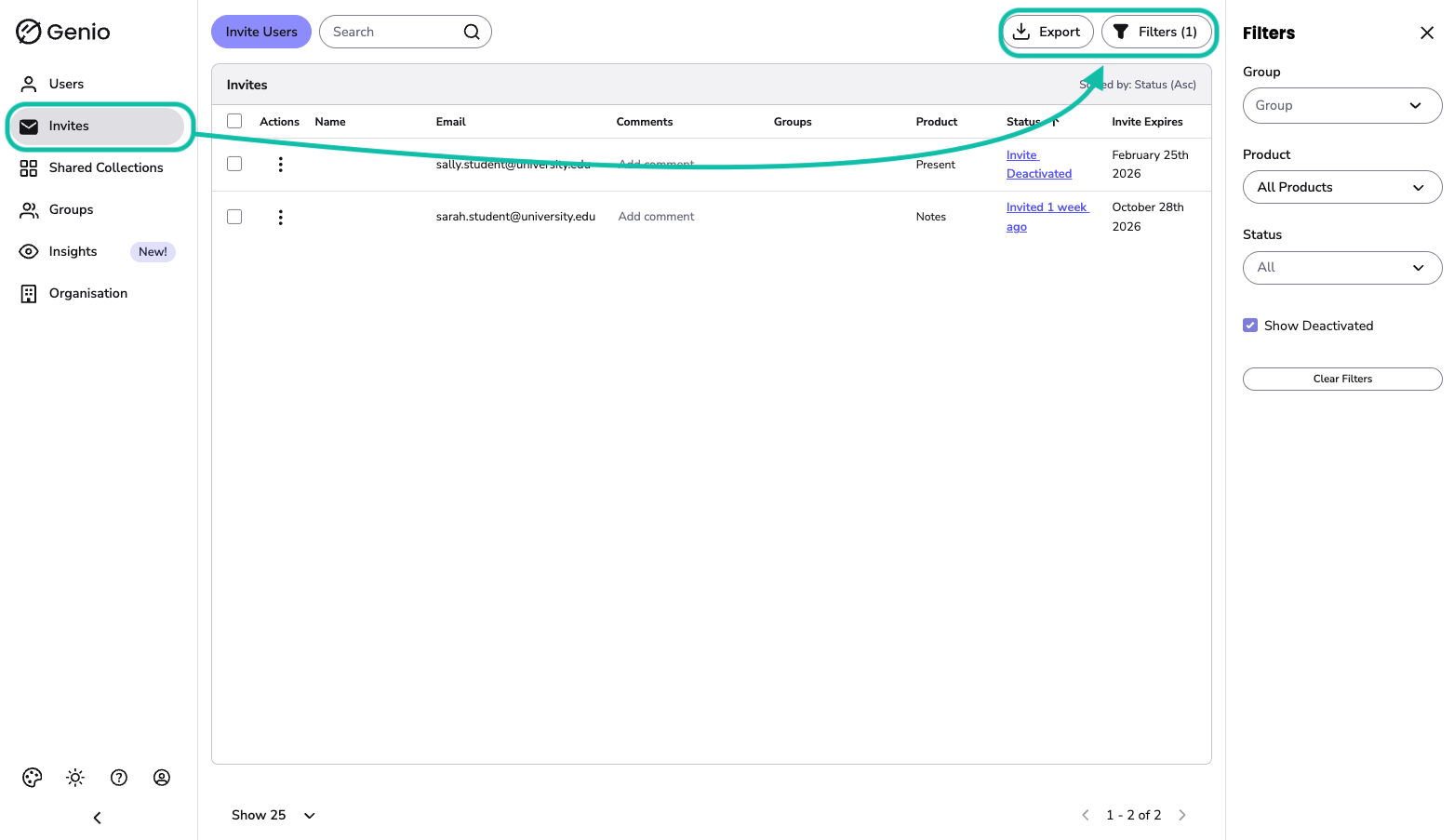
Export Invites
To export people you've invited who haven't signed up yet, go to the Invites tab and follow the same steps.
Export Users from a Group
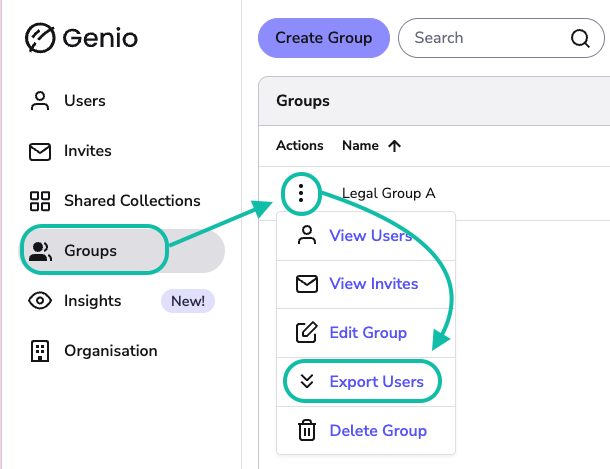
- Select the Groups tab.
- Click the three dots next to the Group you want to export from.
- Select Export Users.
Your CSV file downloads straight away. It includes everyone in the Group, both users who have signed up and people who have been invited. The file uses a fixed set of columns, including each person's status, role, last active date and expiry dates.
What's in the export
The CSV file opens in Excel, Numbers, Google Sheets and similar applications. Depending on the columns you choose, it can include:
| Column | What it shows |
|---|---|
| Name | The user's name |
| The user's email address | |
| Groups | Any Groups the user belongs to |
| Product | Which Genio products the user has |
| Status | Whether the user's account is active or deactivated (see below) |
| Expires | When the user's Genio account expires |
| Last Active | How recently the user has used Genio (see below) |
| Last Active Date | The date and time the user was last active |
Info - If your account has more than one Genio product, Status, Expires, Last Active and Last Active Date are shown separately for each product, for example "Notes Status".
Status
| Status | Meaning |
|---|---|
| Signed Up | The user has a Genio account |
| Deactivated | The user's Genio account has expired |
Last Active
| Last Active | Meaning (default ranges) |
|---|---|
| Active | The user was active in the last 2 weeks |
| At risk | The user was last active between 2 and 4 weeks ago |
| Inactive | The user was last active more than 4 weeks ago |
| No data | There's no activity recorded for this user yet |
Info - You can change the At risk and Inactive ranges. Open the filters on the Users page, go to Last Active and select Edit ranges. Your ranges only apply to your own Admin account, and your exports will use them. Click here for more info on this.