
Enabling Google Sign-In
Genio Sign-Up Options
Genio gives users different options for signing up (and signing in) to their Genio account.
As a Genio Administrator, you can control the available sign-up settings for your users.
In this article:
- Sign-up options
- What is Google Sign-In?
- How do I enable Google Sign-In for Genio?
- What will students see?
- We're not a Google school, does this matter?
- Does Genio support other Single Sign-On (SSO)
Sign-Up options
By default, users sign up by using the email address entered for them in Genio Admin, and creating a password.
Additionally, you can enable all of your invited users to sign up for Genio using Google credentials. (They will still need to use the email address you have entered in Genio Admin).
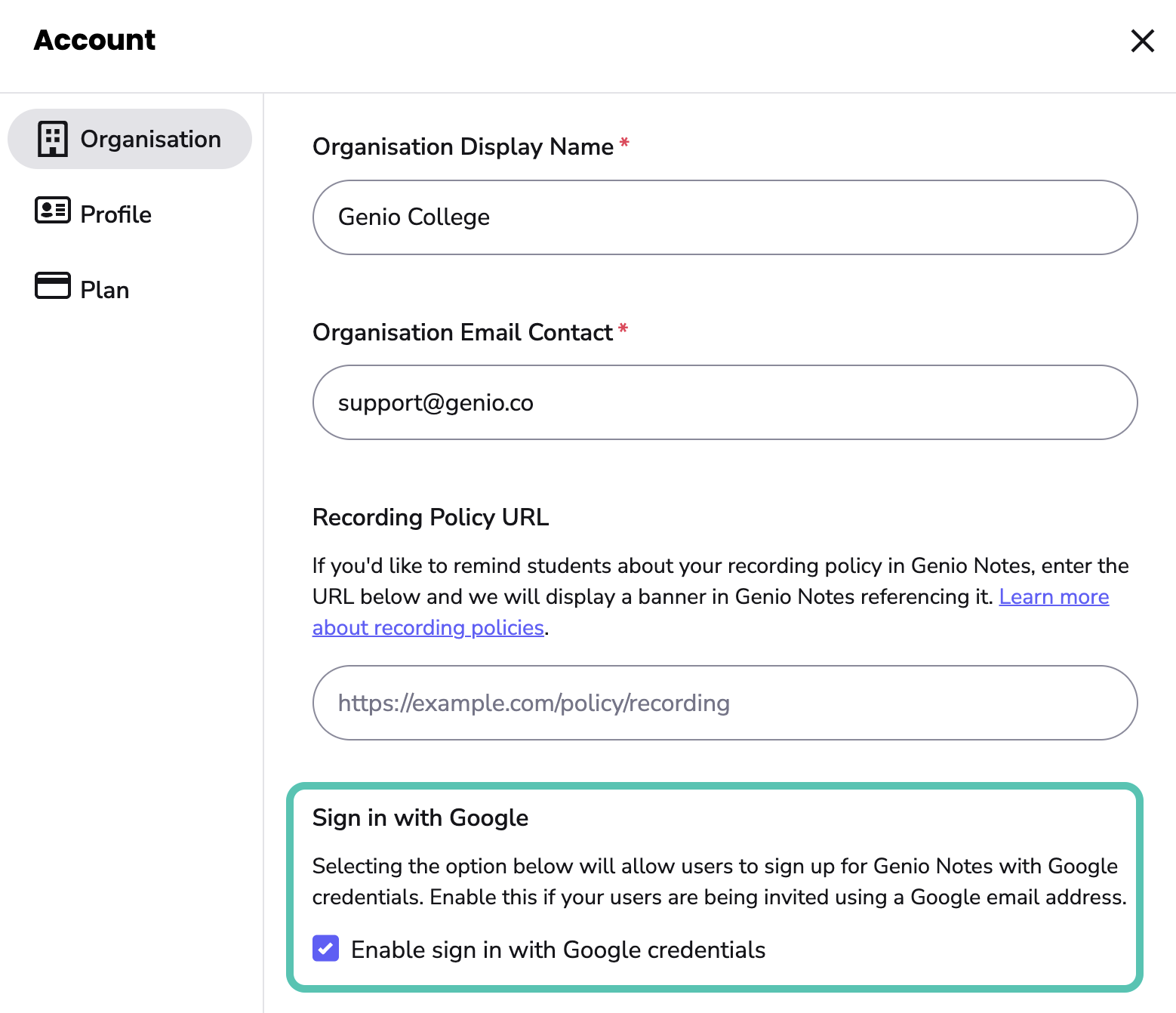
Organization Settings within Genio Admin include the option to Allow sign up with Google credentials.
By default, this option is not enabled. However, it may have been enabled for you when your account was set up if you confirmed that your institution uses Google email addresses.
You can also now use other SSO identity providers - see here for more details: https://help.genio.co/article/312-single-sign-on-sso
What is Google Sign-In
Google Sign-In allows users to use one set of login credentials (e.g. email and password) to access multiple applications. This means the user doesn’t have to create separate passwords for each web application.
If you are a Google institution, you can empower your users to sign up to Genio using their college-issued email address and password.
How does this benefit me and my students?
We all have too many usernames and passwords. Taking advantage of Google Sign-In means that your students will be able to sign up and log in to Genio with their college-issued credentials. Hopefully, fewer passwords + easier access = better student adoption!
How do I know if we are a Google institution?
If you are not sure whether your institution uses Gmail for student emails, your IT department should be able to advise you.
How do I enable Google Sign-In for Genio?
- Sign in to Genio Admin
-
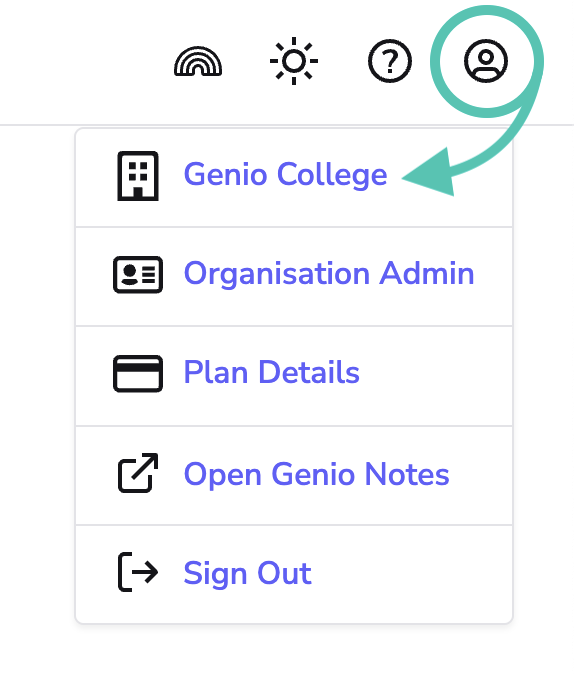
Click on the account icon in the top right and then select your Organization Name:
-
Check the checkbox against Enable sign in with Google credentials:
- Click Save Changes.
What will students see?
When the Google Sign-In option is enabled, invited students will see a Sign up with Google option when they enter the Genio sign-up flow.
-
Select Sign up with Google:
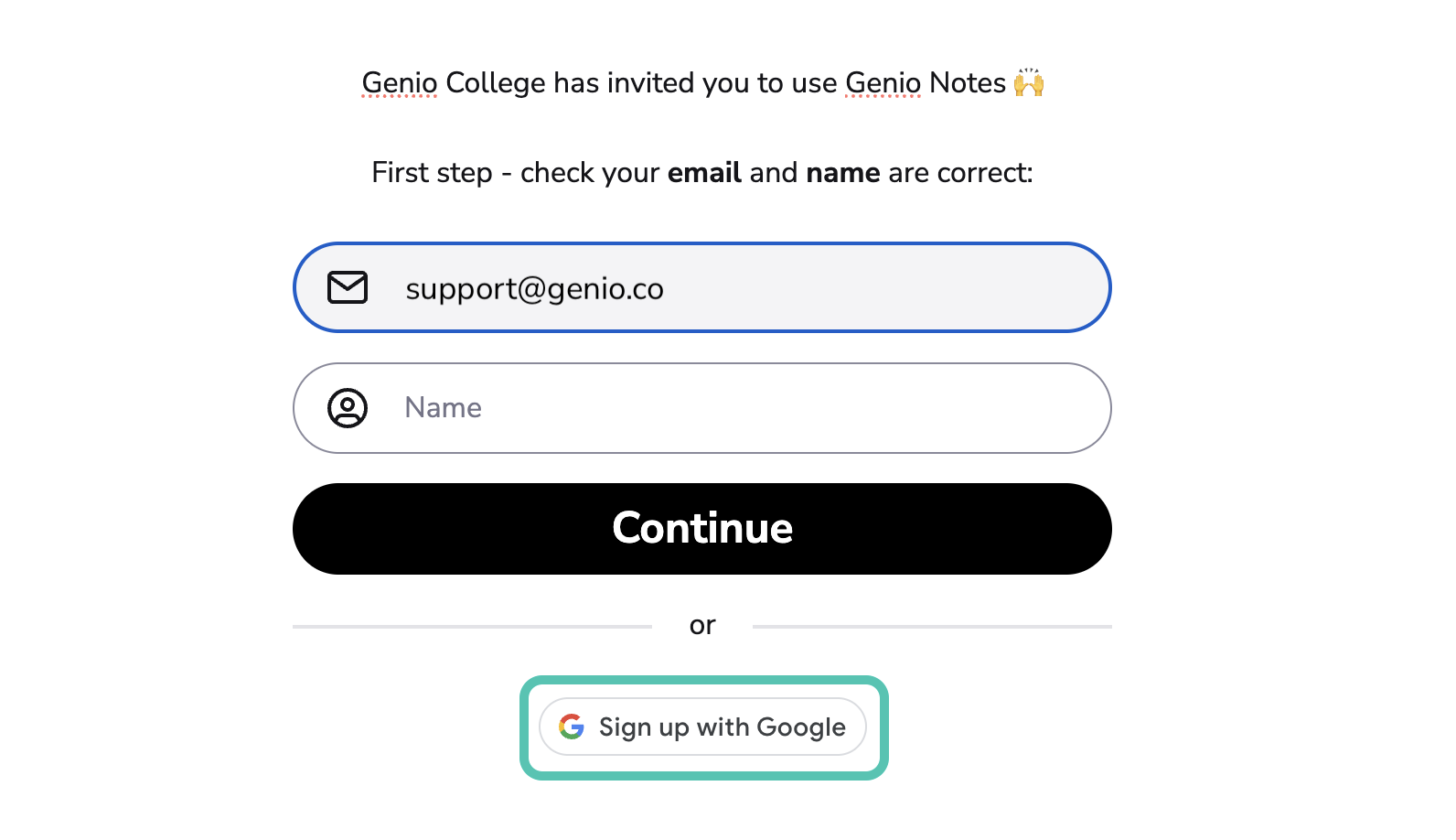
(Students still have the option to create Genio-specific credentials at this stage, by selecting Continue and setting up a password.)
- Confirm Google credentials*: * N.B. The exact sequence of screens that your users will see may depend on your institutional Google account’s settings. You may wish to test and document this yourself (e.g. by inviting colleagues). If you are unsure, your IT department should be able to confirm the process.
- Create the Account
We’re not a Google school, is this a problem?
Not at all! Google Sign-In is an additional option, students can always sign up by creating a Genio-specific password.
Users automatically remain signed in to Genio for 30 days, unless they deliberately sign out via the main menu (or clear their cookies and site data). This means students don’t need to sign in every time they want to use Genio. Every 30 days or so, they will need to re-enter the password they created at sign-up.
To ensure that they can easily sign in to Genio, students can save their login details for Genio using the Google Chrome Password Manager. This allows you to securely save usernames and passwords and have these synced across devices, so they can easily sign in to any web app, including Genio.
What if a student forgets their Genio password?
There is a Forgotten Password link on the Genio sign-in page which students can use to set up a new password if they forget their Genio credentials. This is an automated process which takes just a couple of minutes.