
Focus Mode
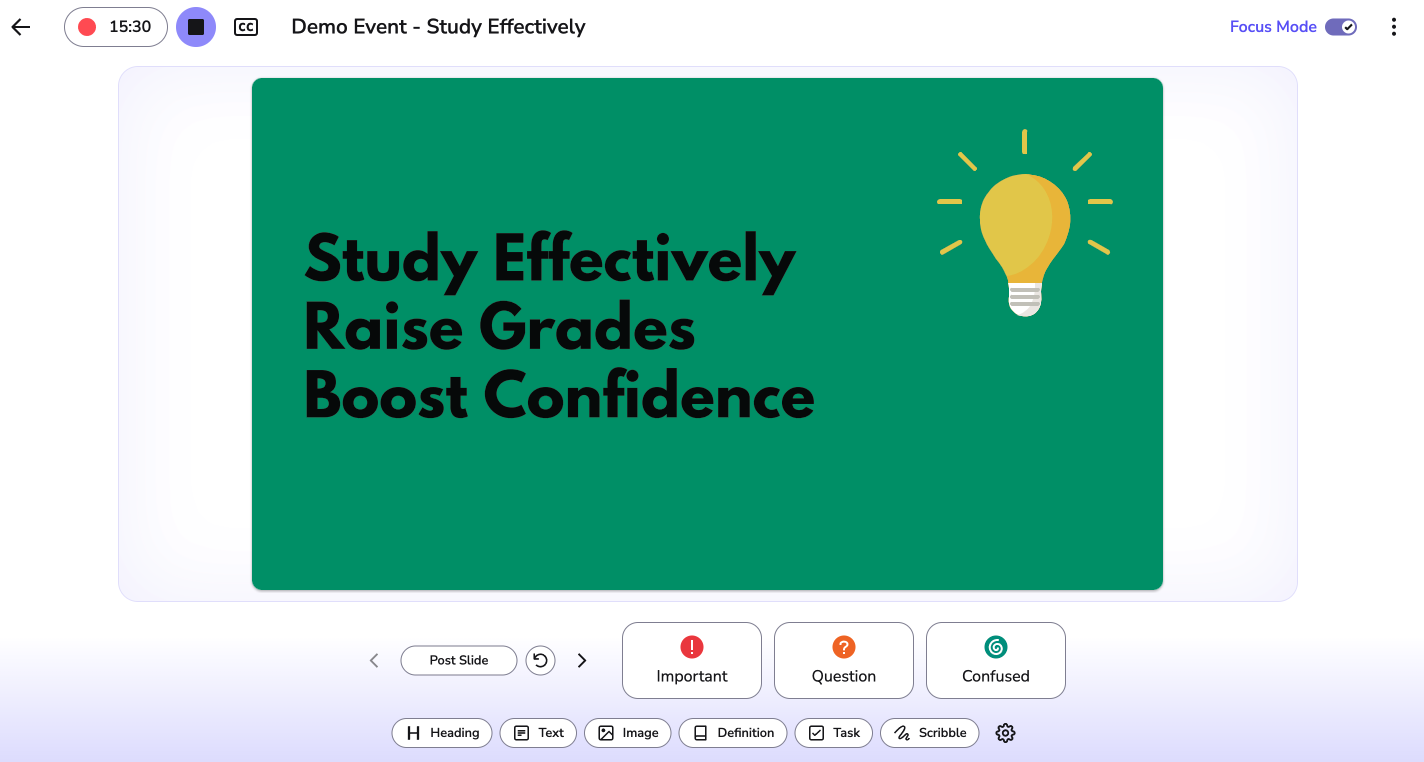
Taking notes live in a lecture can be a juggling act; listening, reading slides, and taking notes all at the same time. Focus Mode strips your Event screen back to the essentials, so you can capture what matters in the moment.
Info - Focus mode replaces our old Quick Notes feature. Focus mode is completely optional; use the toggle to switch the feature off/on or remove it entirely under Preferences.
On this page:
Adding further context with smart cards
Keyboard shortcuts in Focus Mode
Switching Focus Mode On/Off
- Open an Event and start recording.
- Click the Focus Mode toggle in the toolbar at the top of the page.
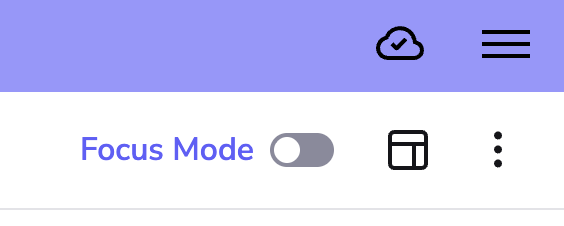
Once it's on, the header and your other toolbar menus (like Layout Options and Study Tools) tuck themselves away, leaving you with a clean, distraction-free capture screen.
To turn it off, just click the toggle again; you'll be back to the regular Event view.
Making Focus Mode the Default
Open Preferences:
- Open the burger menu (three line icon) in the top right
- Expand the Account Section
- Select Preferences
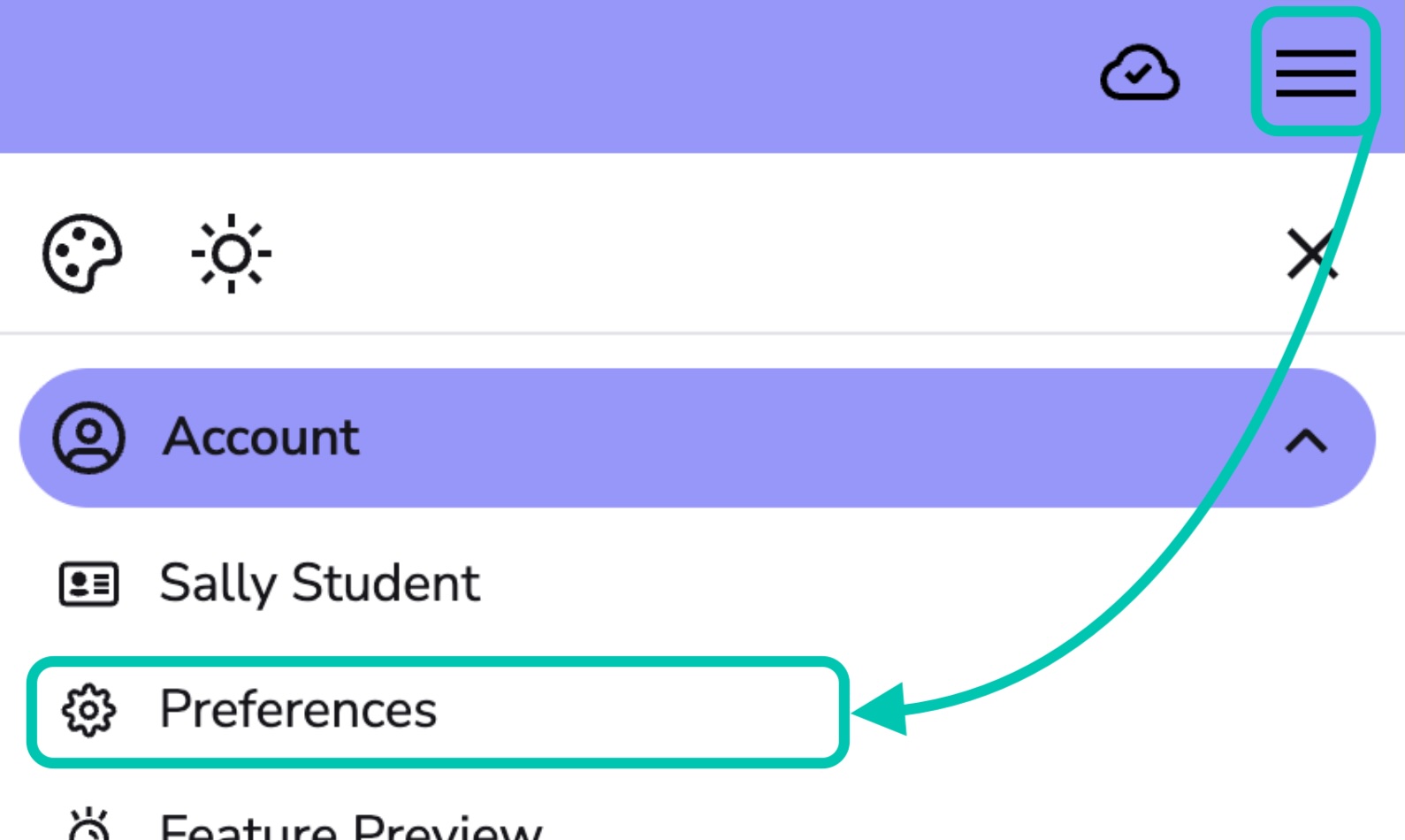
- Switch on Focus Mode there. Every new Event will then start in Focus Mode automatically.

Info - The Focus Mode toggle only appears before you've recorded any audio, or while you're actively recording or paused. Once you stop recording, Genio Notes switches back to the normal Event view automatically.
Highlighting key moments
The three buttons at the bottom of the screen allow you to quickly flag something as it happens, with no pop-ups to fill in: Important, Question or Confused

Tap one and Genio drops a labelled marker at that exact point in your Event; you'll see a quick checkmark confirming it's been added.
Adding further context with smart cards
Below the label buttons, is a row of smart card buttons to let you add richer content, but only if you need them. Heading, Text, Image, Definition, Task or Scribble

Tapping a card opens the usual box to fill in your content - Focus Mode just gets you there faster.
Two extra buttons can appear depending on what you're doing:
-
Screenshot - shows up while you're recording your screen or a browser tab, so you can grab a snapshot of what's on screen.
-
Camera - shows up on the Genio mobile app or in Chrome on Android, so you can snap a photo (for example, of a whiteboard).
Working with slides
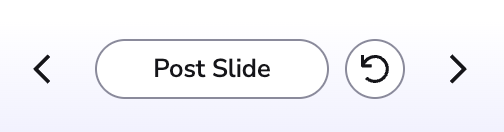
If your Event has slides, Focus Mode shows them front and centre with a few extra controls:
- Use the Previous / Next arrows to browse your slide deck.
- Click Post Slide to add the slide you're viewing to your notes at the current timestamp. If you've moved ahead in the deck, this button changes to Post Next Slide.
- Click the revert button to jump back to whichever slide matches where your recording currently is.
Customising Focus Mode
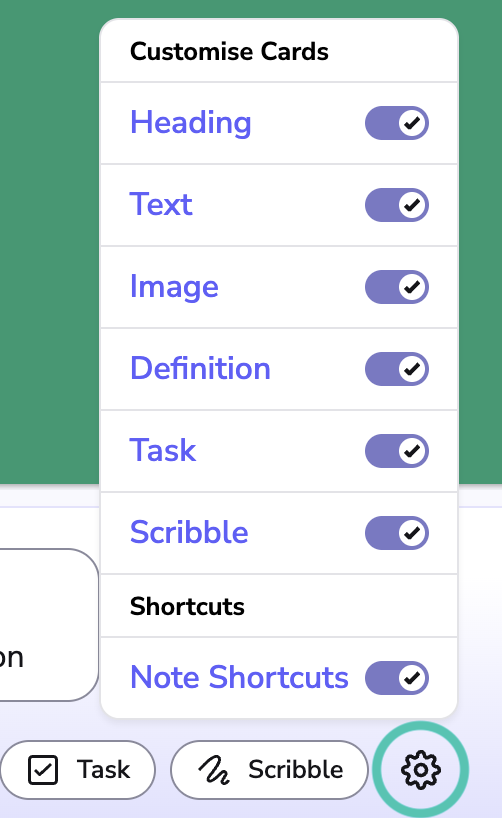
Click the Note Options (gear) icon to tailor Focus Mode to how you like to work. You can switch individual elements off and on.
-
Customise Cards - hide any smart cards you don't use, so only your favourites show up.
(You'll always need to keep at least one card visible)
- Note Shortcuts - turn keyboard shortcuts on or off. When they're on, hovering over any label or card button shows you its shortcut key.
Your choices here are remembered the next time you use Focus Mode.
Keyboard shortcuts in Focus Mode
With Note Shortcuts switched on, you can add labels and cards without reaching for your mouse:
| Key | Action |
|---|---|
1 |
Important label |
2 |
Question label |
3 |
Confused label |
H |
Heading card |
T |
Text card |
I |
Image card |
D |
Definition card |
A |
Task card |
S |
Scribble card |
R |
Screenshot |
C |
Camera |
0 |
Post Slide / Post Next Slide |