
Insights
In this guide:
Your Genio Admin Portal shows you data on how your Organisation subscription is being used.
To access your insights, click the Eye icon on the left-hand panel:
Important - Any changes you make to users, groups etc. can take up to 24 hours before they appear on your dashboard.
Overview
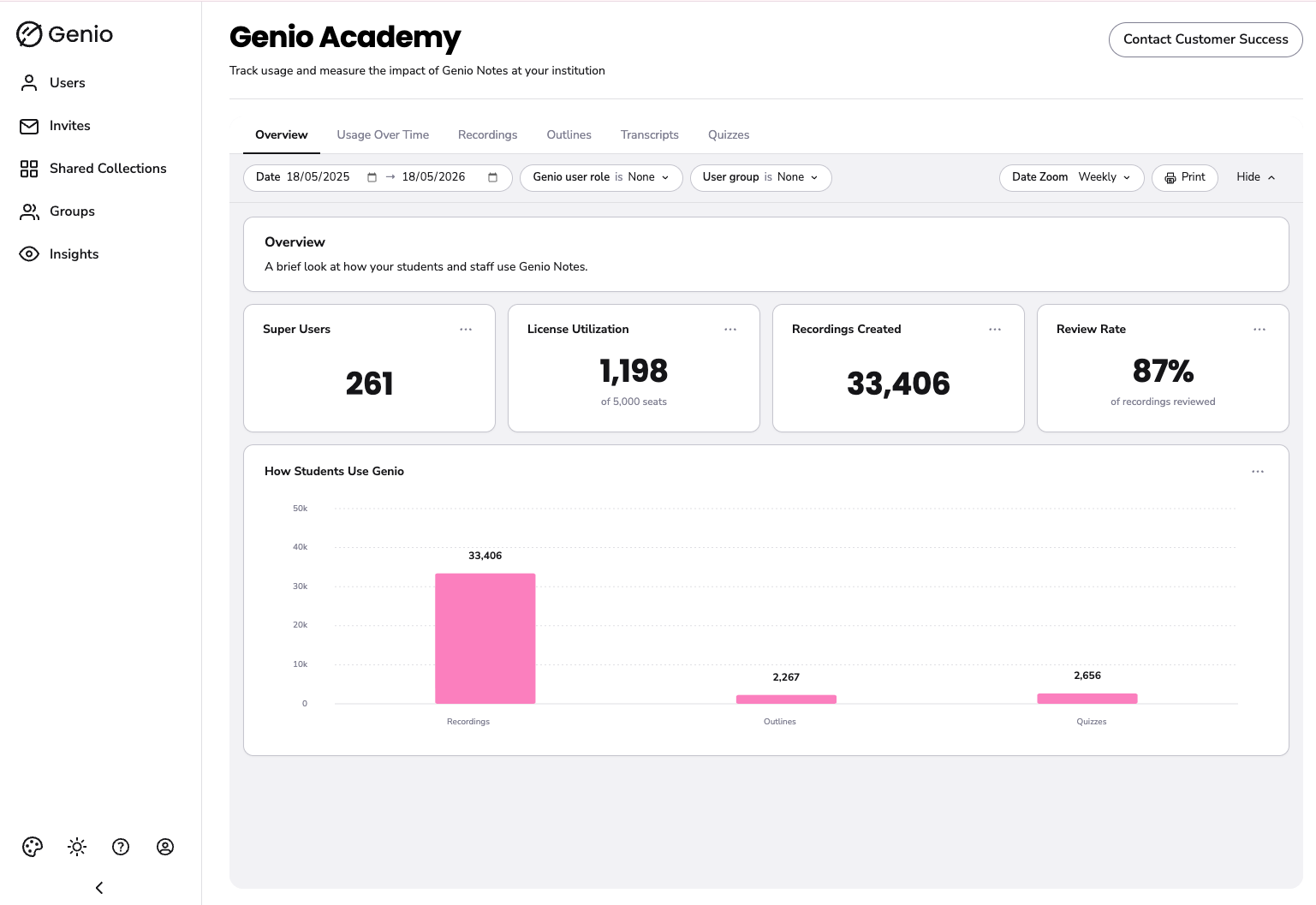
The insights page is made up of several different tabs. This data is pulled live from our database, so the metrics are always up to date.
When you first navigate to the insights tab, you will land on the Overview tab, which gives you a quick snapshot of students' activity:
Exploring and Filtering Data
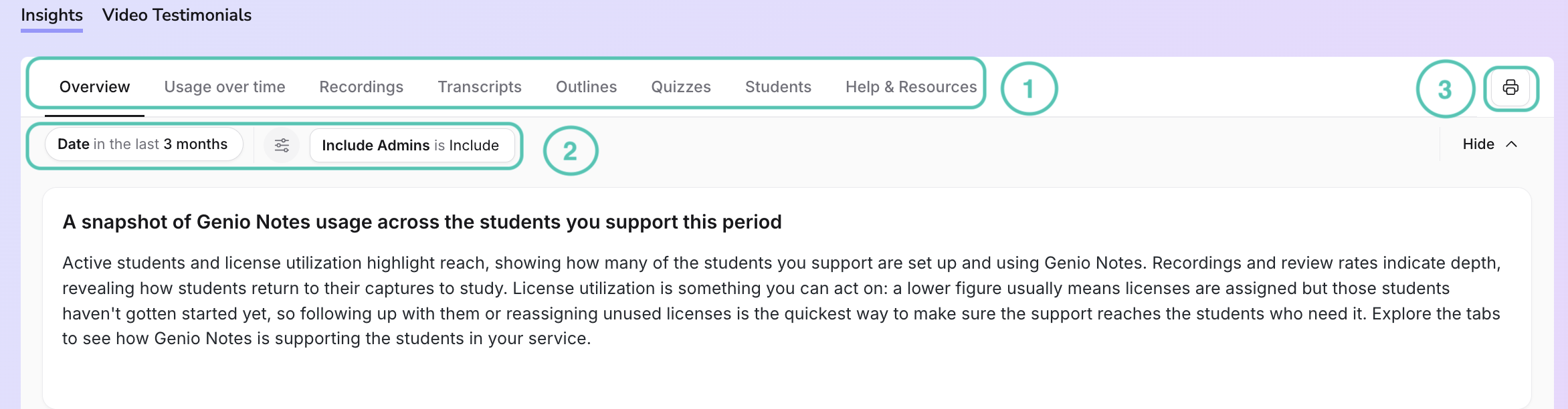
You can customise your view, filter metrics, or export reports using the tools at the top of the page:
Note - Any filter options you set will remain active as you switch between different data tabs.
1. Data Tabs
Switch between tabs to see specific feature breakdowns:
Overview: A snapshot of total usage.
Usage Over Time: Trends and patterns in platform activity.
Recordings, Outlines, Transcripts, & Quizzes: Deep-dive metrics for each specific feature.
Students: Usage data for each individual student (more below).
Students tab
The Students tab shows how each student in your organisation is using Genio Notes. It's a quick way to see who is getting the most out of Genio Notes and who might need extra support.
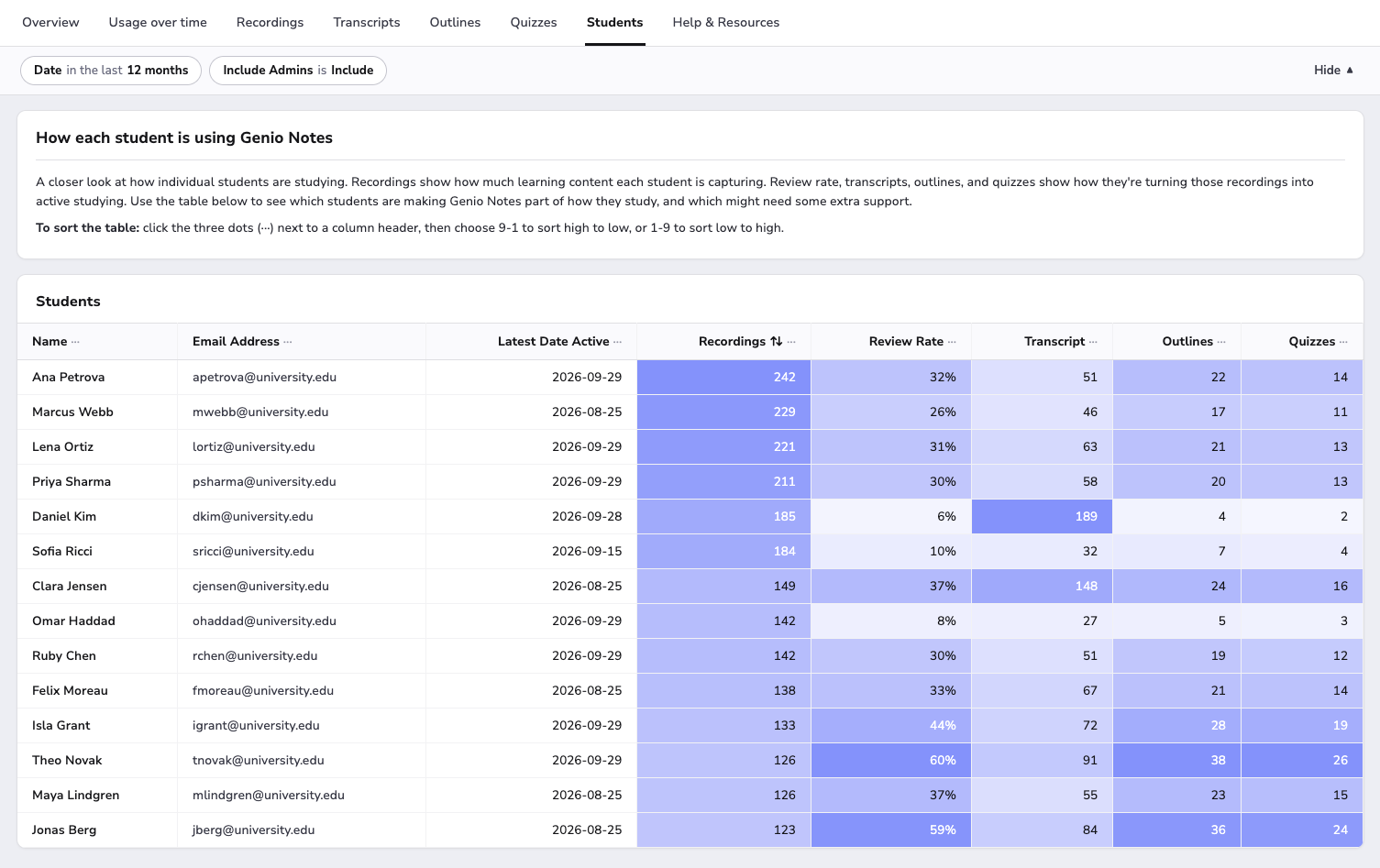
The table lists each student's name and email address, along with:
| Column | What it shows |
|---|---|
| Latest Date Active | The last date the student used Genio Notes. This updates once a day. |
| Recordings | The number of recordings the student has made. |
| Review Rate | The percentage of the student's recordings that they've opened again at least once after recording. If a student hasn't made any recordings, this is blank. |
| Transcripts | The number of transcripts the student has generated. |
| Outlines | The number of outlines the student has generated. |
| Quizzes | The number of Quiz Me quizzes the student has generated. |
Sorting the table
Students are listed alphabetically by name. To sort by a different column, click the three dots (⋯) next to the column header. Choose A-Z or Z-A for names and emails, or 9-1 (high to low) and 1-9 (low to high) for numbers.
Understanding the colours
Each column is shaded so you can spot high and low activity at a glance. The darker the cell, the higher the number compared with the other students in that column. Lighter cells show lower activity. Each column is shaded separately, so a student can be dark in one column and light in another.
2. Data Filters
Narrow down your data to find exactly what you need. You can filter by:
Timeframe (specific calendar date ranges)
Date Zoom ( Daily, Weekly, Monthly, Yearly)
Role (include/exclude Administrators)
3.Printing/exporting data
Click 'Print' to export the data displayed in your current tab.
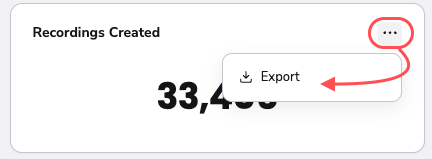
You can also export data from individual fields within the data tabs. If you see a three-dot icon in the top-right corner of a field, click it to export that specific data. For example:
Important - Any changes you make to users, groups etc. can take up to 24 hours before they appear on your dashboard.