
Audio and Video Import
Note - This guide applies to Genio Notes on your browser, desktop app and new mobile app 📱
Bring existing audio or video into Genio Notes! Once your content is imported, you can create amazing multi-media notes (just like when you're recording live).
Important – Video capture is currently only available to certain organisations. If you don't see this option, it will not be available to you.
Info - You can import your audio or video file while offline – you do not need to be connected to the internet while importing.
In this guide:
Importing Audio
Info - Genio Notes allows you to import either MP3 or WAV audio files into your Events. You can import files up to 3 hours long.
- Within the audio tab, click the three dots on the right-hand side to open the Audio Options Menu
- Select 'Import Audio' (or you will see 'Import Audio or Video' if your account allows you to import videos)
- Pick your file
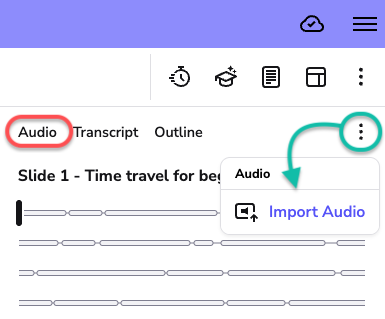
Or if you haven't added any audio yet, simply click the Import Audio button in the main feed.

It will take approximately 2 minutes to import an hour of audio and you will need to leave your Event open while the import is being processed. If you close your Event then it will cancel the import.
Importing Video
Important - You can import MP4 video files up to 3 hours long into your Events.
- Similar to importing audio, navigate to the audio tab.
- Select 'Import Audio or Video'.
- Pick your file
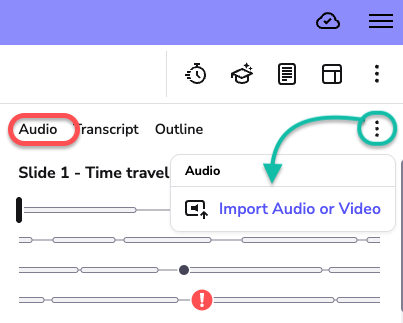
Importing a video automatically imports the audio too; you will see a bubble visualisation of the audio in your audio feed.
Important – Video capture is only currently available to certain organisations. If you don't see this option, it will not be available to you.
Importing Multiple Files
If you have multiple audio or video files that you need in the same Event, then you'll need to import them one at a time. The files will be added to your Event in the order in which you import them.
FAQ
-
My Audio isn't MP3 or WAV, what can I do?
You’ll need to convert your audio file to MP3 or WAV format. There are many tools available for this; check your computer's app store. Your Student Support Team at your College or University should be able to advise on conversion tools available to students.
-
My files are too large how can I reduce the size?
Genio's single file limit for audio, is 3 hours. If your file is too large, then you will need to use an audio editing application to split the file up into multiple parts and import those one at a time.
-
Do you support Index Marks from digital recorders?
We do not currently support Index Marks.
-
I have recordings in Audio Notetaker how do I get those into Genio?
Audio Notetaker Project files are multi-media (like Genio) so contain more than just audio. You cannot import the Project file, but you can use Audio Notetaker's export options to create a WAV audio file that you can then import to Genio.
Open your Project in Audio Notetaker, Select the audio to export (or press CTRL+A to select everything), then go to Export -> Export Selected Audio. You'll then need to change the file format for the export to WAV.
Once you have your WAV file you can then import that into Genio. See below for more details on exporting from Audio Notetaker:
Windows: https://genioco.zohodesk.com/portal/en/kb/articles/reference-guide-4-15-exporting-audio
Mac: https://genioco.zohodesk.com/portal/en/kb/articles/reference-guide-4-14-exporting-audio