
Microphone Recording
Note - This guide applies to Genio Notes on your browser, desktop app and new mobile app 📱
On this guide:
What am I going to be recording?
Setting your default device (desktop)
Granting microphone access on mobile
What am I going to be recording?
On your computer:
Genio will record through your microphone, using whatever microphone is set as your default input device.
If you have more than one microphone connected, you will need to go into your system settings and make sure the correct one is set as your default input device ( see below).
On mobile:
Your device's built-in microphone is used by default. This can't be manually changed within the app. However, if you connect an external device (such as headphones with a microphone), your operating system may automatically switch to that instead. It just depends on whether your device automatically recognises the external device as a microphone.
Before recording on mobile, make sure you have granted Genio Notes permission to access your microphone. See the steps below if you're not sure how to do this.
Starting your Recording
- Click the Record button
- Choose Microphone from the menu that opens
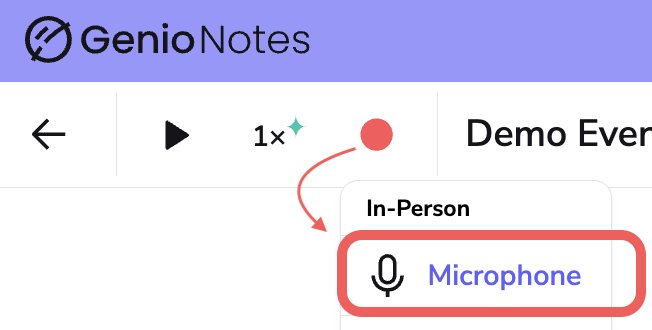
Recording starts straight away, and you'll see your timer start counting up (#1) and the audio bubbles appearing in your feed (#2):
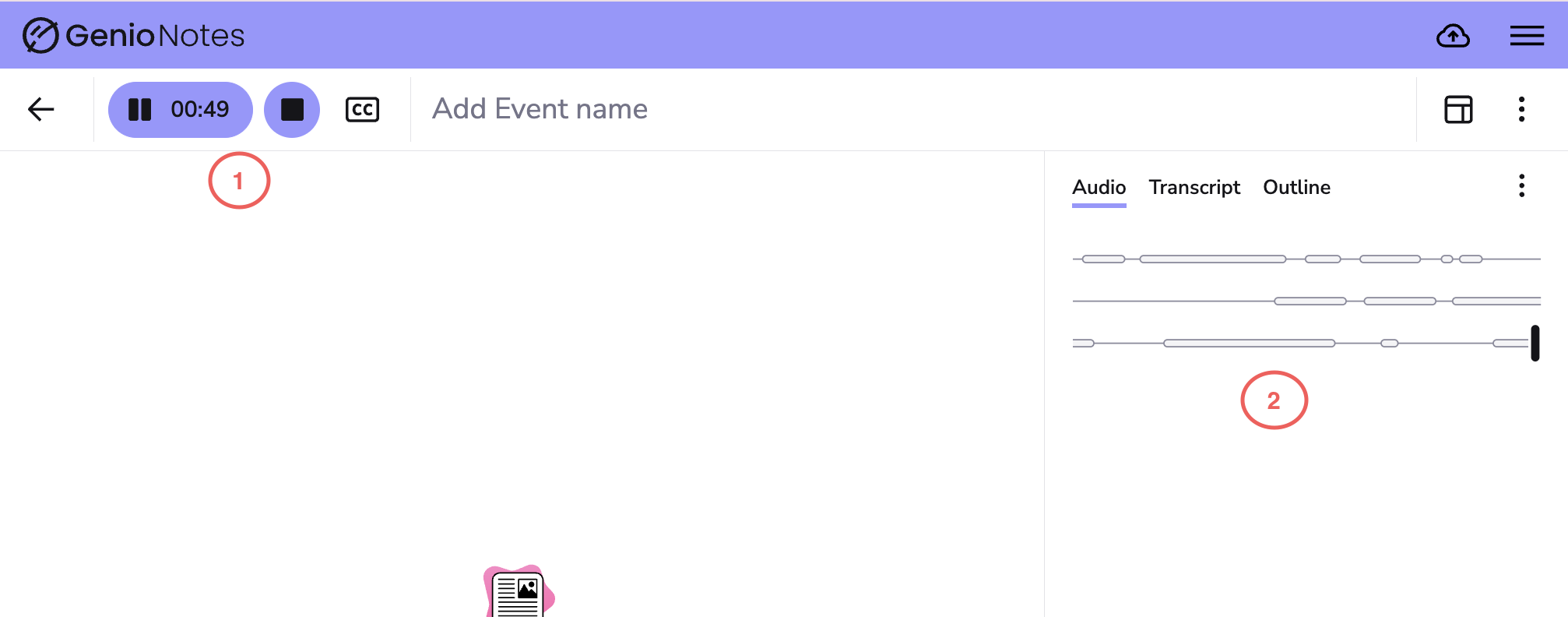
If you don't see the bubbles appear or you get a flat line, then there might be an issue with your microphone; check that everything is set up properly using the steps below.
Pause Recording - Need to pause recording? Now you can. Just press the ⏸ button! Find out more here: https://help.genio.co/article/287-pause-recording
Setting your default device (desktop)
Windows:
- Right-click the speaker icon in the bottom right of your taskbar
- Select Open Sound Settings
- Under Input, choose the correct microphone
Mac:
- Open System Settings
- Select Sound
- Switch to the Input tab
- Select the correct microphone device
- Make sure the input volume slider is turned up
Granting microphone access on mobile
If Genio Notes doesn't have permission to use your microphone, recording won't work. Here's how to check:
iOS:
- Open the Settings app
- Tap Apps, scroll down and tap Genio Notes
- Make sure Microphone is toggled on
Android:
- Open the Settings app
- Tap Apps
- Find and tap Genio Notes
- Tap Permissions
- Make sure Microphone is set to Allow